Showing posts with label compact. Show all posts
Showing posts with label compact. Show all posts
Tuesday, July 26, 2016
Desbloqueio do Bootloader Sony SP ZQ ZL Z Z1 Z1 Compact Z Ultra Z Ultra Google Play Edition
Olá pessoal que acompanha a Stock Rom, sou um novo poster e esse é o meu primeiro tutorial, caso aja algum erro comente. Lembrando que esse procedimento só funciona nos aparelhos acima e nos modelos que foram lançados em 2013, modelos anteriores (2012) é outro método bem mais fácil que estarei postando depois.
OBS 1: Faça por sua conta e risco, não me responsabilizo por bricks, ou bugs, ocasionados pelo desbloqueio do mesmo.
OBS 2: Na versão 4.2 do Z1 a câmera para de funcionar, problema que foi consertado quando colocar a atualização para o 4.3.
OBS 3: Na versão 4.4.2 do Z1 Brasileiro se você desbloquear o Bootloader a TV Digital para de funcionar.
OBS 4: Para fazer o root no Z1 é necessário fazer o desbloqueio do Bootloader, tem um método para fazer o root com o Bootloader bloqueado só que eu não recomendo pois o procedimento é longo e minuncioso e enjoado de fazer.
OBS 5: Desbloqueando o Bootloader irá formatar o seu celular, por isso faça um Backup antes.
OBS 6: Em aparelhos de 2013 (ZQ, ZL, Z) tire seu cartão de memória antes de começar o procedimento, senão ele será formatado junto com o celular.
Vamos lá.
Passo 1
Primeiramente até esta pagina da Sony : http://unlockbootloader.sonymobile.com/ , desça até o final da pagina e clique na opção "Start unlocking the boot loader"
Depois disto pegue seu Sony e digite no discador *#*#7378423#*#*, irá aparecer uma tela de configuração, selecione Service info > Configuration > Rooting Status, caso apareça no rooting status a mensagem : "Bootloader unlock alowed : Yes" podemos continuar, mas caso apareça "Bootloader unlock alowed : No" não será possível desbloquear o Bootloader (Raramente ocorre isso), clique no final da pagina em "Continue", e na proxima pagina clique em "Yes, Im Sure", na próxima pagina você marca as 2 opções, e clica em "I accept". Na página seguinte, vai aparecer isto:

Você irá preencher o seguinte nessas abas:
Name: Você coloca o seu nome
IMEI or MEID or IDID: Você digita todos os números do seu IMEI com exceção do ultimo número,
EX: 2152465289825 (treze números)
OBS: Você pode achar o IMEI do seu celular no adesivo na caixa dele, ou digitando no discador *#06#.
E-mail: Você coloca o e-mail da sua preferência, ai é só clicar em Submit e no seu e-mail vai chegar um código, este será o código que vamos precisar para desbloquear o bootloader, e para rebloquear novamente irá precisar dele também, por isso salve e guarde-o a salvo.
Passo 2:
Feito o procedimento acima agora vamos colocar a mão na massa.
Baixe este pack ADB Bootloader e extraia o conteúdo do rar para sua Área de trabalho.
Link: MEGA
Selecione a pasta, segure a tecla Shift e clique com o botão direto do mouse, e selecione a opção "Abrir janela de comando aqui", e irá abrir o prompt de comando do windows automáticamente.
Desligue o seu telefone e conecte-o ao computador em modo fastboot (segure a tecla de volume + e plug o usb no pc, se acender um led azul e por que está em fastboot).
Copie e cole na janela do prompt de comando fastboot.exe -i 0x0fce getvar version
Se aparecer finish em ate 0.007s está tudo em ordem.
Agora copie e cole este outro comando fastboot.exe -i 0x0fce oem unlock 0x
depois do 0x, digite a chave que você recebeu em seu e-mail anteriormente e aperte enter, se ocorrer tudo bem aparecerar só um OK na tela do prompt. Pronto bootloader desbloqueado.
Não gostou de ter desbloqueado e quer rebloquear o bootloader ? Siga o procedimento abaixo:
Passo 1:
Abra o Flashtools (v0.9.15 ou superior), conecte o seu telefone em flashmode (desligue-o, segure a tecla de volume - e conect na usb).
Passo 2 :
Clique em BLU do lado do raio no flashtools, e irá aparecer uma outra janelinha

Clique em Relock e o procedimento vai ocorrer sozinho.
Quando aparecer na tela ending flash session e por que ocorreu tudo ok. Pronto seu Bootloader foi rebloqueado.
É indeciso e que desbloquear novamente o Bootloader ? Repita esse ultimo procedimento, só que no lugar de apertar "Relock" vai aparecer "Unlock", é só clicar e pronto. Seja feliz com seu Bootloader desbloqueado de novo.
Créditos
AbnerEC
Read more »
OBS 1: Faça por sua conta e risco, não me responsabilizo por bricks, ou bugs, ocasionados pelo desbloqueio do mesmo.
OBS 2: Na versão 4.2 do Z1 a câmera para de funcionar, problema que foi consertado quando colocar a atualização para o 4.3.
OBS 3: Na versão 4.4.2 do Z1 Brasileiro se você desbloquear o Bootloader a TV Digital para de funcionar.
OBS 4: Para fazer o root no Z1 é necessário fazer o desbloqueio do Bootloader, tem um método para fazer o root com o Bootloader bloqueado só que eu não recomendo pois o procedimento é longo e minuncioso e enjoado de fazer.
OBS 5: Desbloqueando o Bootloader irá formatar o seu celular, por isso faça um Backup antes.
OBS 6: Em aparelhos de 2013 (ZQ, ZL, Z) tire seu cartão de memória antes de começar o procedimento, senão ele será formatado junto com o celular.
Vamos lá.
Passo 1
Primeiramente até esta pagina da Sony : http://unlockbootloader.sonymobile.com/ , desça até o final da pagina e clique na opção "Start unlocking the boot loader"
Depois disto pegue seu Sony e digite no discador *#*#7378423#*#*, irá aparecer uma tela de configuração, selecione Service info > Configuration > Rooting Status, caso apareça no rooting status a mensagem : "Bootloader unlock alowed : Yes" podemos continuar, mas caso apareça "Bootloader unlock alowed : No" não será possível desbloquear o Bootloader (Raramente ocorre isso), clique no final da pagina em "Continue", e na proxima pagina clique em "Yes, Im Sure", na próxima pagina você marca as 2 opções, e clica em "I accept". Na página seguinte, vai aparecer isto:
Você irá preencher o seguinte nessas abas:
Name: Você coloca o seu nome
IMEI or MEID or IDID: Você digita todos os números do seu IMEI com exceção do ultimo número,
EX: 2152465289825 (treze números)
OBS: Você pode achar o IMEI do seu celular no adesivo na caixa dele, ou digitando no discador *#06#.
E-mail: Você coloca o e-mail da sua preferência, ai é só clicar em Submit e no seu e-mail vai chegar um código, este será o código que vamos precisar para desbloquear o bootloader, e para rebloquear novamente irá precisar dele também, por isso salve e guarde-o a salvo.
Passo 2:
Feito o procedimento acima agora vamos colocar a mão na massa.
Baixe este pack ADB Bootloader e extraia o conteúdo do rar para sua Área de trabalho.
Link: MEGA
Selecione a pasta, segure a tecla Shift e clique com o botão direto do mouse, e selecione a opção "Abrir janela de comando aqui", e irá abrir o prompt de comando do windows automáticamente.
Desligue o seu telefone e conecte-o ao computador em modo fastboot (segure a tecla de volume + e plug o usb no pc, se acender um led azul e por que está em fastboot).
Copie e cole na janela do prompt de comando fastboot.exe -i 0x0fce getvar version
Se aparecer finish em ate 0.007s está tudo em ordem.
Agora copie e cole este outro comando fastboot.exe -i 0x0fce oem unlock 0x
depois do 0x, digite a chave que você recebeu em seu e-mail anteriormente e aperte enter, se ocorrer tudo bem aparecerar só um OK na tela do prompt. Pronto bootloader desbloqueado.
Não gostou de ter desbloqueado e quer rebloquear o bootloader ? Siga o procedimento abaixo:
Passo 1:
Abra o Flashtools (v0.9.15 ou superior), conecte o seu telefone em flashmode (desligue-o, segure a tecla de volume - e conect na usb).
Passo 2 :
Clique em BLU do lado do raio no flashtools, e irá aparecer uma outra janelinha
Clique em Relock e o procedimento vai ocorrer sozinho.
Quando aparecer na tela ending flash session e por que ocorreu tudo ok. Pronto seu Bootloader foi rebloqueado.
É indeciso e que desbloquear novamente o Bootloader ? Repita esse ultimo procedimento, só que no lugar de apertar "Relock" vai aparecer "Unlock", é só clicar e pronto. Seja feliz com seu Bootloader desbloqueado de novo.
Créditos
AbnerEC

Monday, July 25, 2016
How to Install CM13 Android 6 0 1 Marshmallow on Sony Xperia Z1 Compact D5503
According to XDA Member CLINTZ9, Android 6.0.1 Marshmallow CyanogenMod 13 [CM13] unofficial ROM is released for Sony Xperia Z1 Compact D5503. CM13 will let D5503 users taste the sweetness of Marshmallow 6.0.1 on Sony Xperia Z1 Compact D5503.

Follow our guide below to download the Unofficial CM13 and install it yourself.
View my Flipboard Magazine.
÷ Prerequisites:
•This tutorial is only for installing Android 6.0.1 Marshmallow Unofficial CM13 ROM on Sony Xperia Z1 Compact D5503. Please do not try on any other Sony Xperia Z1 Compact variants.
•Your phone should be rooted and haveClockworkMod recovery installed from before.
•This tutorial will wipe out all your data.Proceed at your own risk.Perform a Dalvik Cache wipe before proceeding from the recovery mode.
Make sure you backup all your data in your phone before proceeding.
*Disclaimer:
Android Custom ROM fix ® provide various Firmware Updates and Rooting process along with Custom ROM,Modes,file are all belong to their owners/developers. The autor of this site or the developers are not responsible, if you damage or brick your device.Do it on your own risk and follow the instruction properly.
* Important:
Backup important files stored on your device before proceeding with the steps below, so that in case something goes wrong you’ll have backup of all your important files.

÷ How to Install CM13 Android 6.0.1 Marshmallow on Sony Xperia Z1 Compact D5503.
Step 1 – Download CM13 Android 6.0.1 Marshmallow and Google Apps for your Xperia Z1 Compact D5503 to your computer.
Step 2 – Connect and mount your Sony Xperia Z1 Compact D5503 USB memory on your computer using the USB cable.
Step 3 – Now copy/paste the downloaded Android 6.0.1 ROM zip file and Google Apps zip files to your SD card. Make sure the files are in the SD card root (not in any folder).
Step 4 – Then turn OFF your phone and disconnect from the USB cable.
Step 5 – Now to get in the Recovery Mode. Switch ON the phone while pressing and holding Volume Up + Home + Power buttons together
Step 6 – Once you are in ClockworkModRecovery, select perform a full data wipe by selecting “wipe data/factory reset”. Use the Power button to select everything while in the Recovery Mode.
Step 7 – Then, perform a cache wipe by selecting “wipe cache partition” .
Step 8 – Now this is optional, but it is recommended to perform a wipe of your dalvik cache as well. You will not get into boot loops or any other errors. From CWM recovery, go to ‘advanced’ and then select “wipe dalvik cache”.
Step 9 – Then go back to the main recovery screen and select “install zip from SD card”.
Step 10 – Now select “choose zip from sdcard”. Using your volume keys, navigate to the Android 6.0.1 ROM zip file that you copied to your SD card and select it using the Power button. Confirm the installation on the next screen and the installation procedure should start now.
Google Apps: Repeat the above step for the Gapps zip file as well and install it on your phone.
Step 11 – After the installation completes, go to “+++++Go Back+++++” and reboot the phone by selecting “reboot system now” from the recovery menu.

Your Sony Xperia Z1 Compact D5503 will boot now and it might take about 5 minutes to boot on your first time. So, please wait.
That’s it! Your Sony Xperia Z1 Compact D5503 should now have unofficial CM13 Android 6.0.1 Marshmallow installed on your phone! Go to Settings > About phone to verify.
Like this post? PLZ Hit the share buttons below to share this article with your friends on Facebook, Google + and Twitter.
PLZ Follow Us On Flipboard 4 More Xperia Z1 Compact D5503 latest custom ROM fix.
PLZ Use the comment box below to contribute more ideas & Suggestions .
Best Regards.
÷ Prerequisites:
•This tutorial is only for installing Android 6.0.1 Marshmallow Unofficial CM13 ROM on Sony Xperia Z1 Compact D5503. Please do not try on any other Sony Xperia Z1 Compact variants.
•Your phone should be rooted and haveClockworkMod recovery installed from before.
•This tutorial will wipe out all your data.Proceed at your own risk.Perform a Dalvik Cache wipe before proceeding from the recovery mode.
Make sure you backup all your data in your phone before proceeding.
*Disclaimer:
Android Custom ROM fix ® provide various Firmware Updates and Rooting process along with Custom ROM,Modes,file are all belong to their owners/developers. The autor of this site or the developers are not responsible, if you damage or brick your device.Do it on your own risk and follow the instruction properly.
* Important:
Backup important files stored on your device before proceeding with the steps below, so that in case something goes wrong you’ll have backup of all your important files.
÷ How to Install CM13 Android 6.0.1 Marshmallow on Sony Xperia Z1 Compact D5503.
Step 1 – Download CM13 Android 6.0.1 Marshmallow and Google Apps for your Xperia Z1 Compact D5503 to your computer.
Step 2 – Connect and mount your Sony Xperia Z1 Compact D5503 USB memory on your computer using the USB cable.
Step 3 – Now copy/paste the downloaded Android 6.0.1 ROM zip file and Google Apps zip files to your SD card. Make sure the files are in the SD card root (not in any folder).
Step 4 – Then turn OFF your phone and disconnect from the USB cable.
Step 5 – Now to get in the Recovery Mode. Switch ON the phone while pressing and holding Volume Up + Home + Power buttons together
Step 6 – Once you are in ClockworkModRecovery, select perform a full data wipe by selecting “wipe data/factory reset”. Use the Power button to select everything while in the Recovery Mode.
Step 7 – Then, perform a cache wipe by selecting “wipe cache partition” .
Step 8 – Now this is optional, but it is recommended to perform a wipe of your dalvik cache as well. You will not get into boot loops or any other errors. From CWM recovery, go to ‘advanced’ and then select “wipe dalvik cache”.
Step 9 – Then go back to the main recovery screen and select “install zip from SD card”.
Step 10 – Now select “choose zip from sdcard”. Using your volume keys, navigate to the Android 6.0.1 ROM zip file that you copied to your SD card and select it using the Power button. Confirm the installation on the next screen and the installation procedure should start now.
Google Apps: Repeat the above step for the Gapps zip file as well and install it on your phone.
Step 11 – After the installation completes, go to “+++++Go Back+++++” and reboot the phone by selecting “reboot system now” from the recovery menu.
Your Sony Xperia Z1 Compact D5503 will boot now and it might take about 5 minutes to boot on your first time. So, please wait.
That’s it! Your Sony Xperia Z1 Compact D5503 should now have unofficial CM13 Android 6.0.1 Marshmallow installed on your phone! Go to Settings > About phone to verify.
Like this post? PLZ Hit the share buttons below to share this article with your friends on Facebook, Google + and Twitter.
PLZ Follow Us On Flipboard 4 More Xperia Z1 Compact D5503 latest custom ROM fix.
PLZ Use the comment box below to contribute more ideas & Suggestions .
Best Regards.
Download Stock Rom para Sony XPERIA Z3 Compact D5803 Baixar Rom Original de Fabrica para Sony XPERIA Z3 Compact D5803

Download Stock Rom / Firmware para Sony XPERIA Z3 Compact D5803
Modelo................................................D5803 (firmware 23.0.A.2.105)
Região................................................Reino Unido
Idioma.................................................Multi Linguagem
Versão do Android..............................4.4.4 kit kat
Procedimento de Instalação...............Flash Pelo Flashtool (tutorial aqui)
Tamanho............................................ 1.15 GB
Formato do arquivo............................ FTF
Downloads
Mega
Google Drive
Créditos
XperiaFimware
Atenção
Nós do Stock Rom não nos responsabilizamos por quaisquer danos causados nos dispositivos.
A responsabilidade é inteiramente do usuário.
Para mais informações, leia os Termos do site AQUI.
Termos de Busca
Baixar firmware oficial para Sony Xperia3 Compact D5803 Como atualizar Sony Xperia3 Compact D5803
Rom original e oficial para Sony Xperia3 Compact D5803 Rom Brasileira para Sony Xperia3 Compact D5803
Download Rom Stock para Sony Xperia3 Compact D5803 limpa, sem vinculo ou logo de operadora.
Possibilidade de reviver ou ressuscitar seu Sony Xperia3 Compact D5803. Possibilidade de resolver loop ou boot infinito doSony Xperia3 Compact D5803
Sony Xperia3 Compact D5803 liga e só fica na tela ou logo da Sony Xperia3 Compact D5803 só fica na tela de apresentação ou tela de inicio.
Pode flashear essa rom do Sony Xperia3 Compact D5803 para resolver esses problemas
Guide How to Download Sony Xperia Z3 Tablet Compact Firmware Using XperiFirm
[Guide] How to Download Sony Xperia Z3 Tablet Compact Firmware Using XperiFirm.
Download Sony Xperia Z3 Tablet Compact Firmware. On this guide guidebelajar will show you how to download Sony Xperia Z3 Tablet Compact Firmware Using XperiFirm. You can use this firmware to upgrade or downgrade the android system. Even you can fix Sony Xperia Z3 Tablet Compact android from bootloop or bricked. XperiFirm is a suitable tool let you to download the current firmware for all Sony Xperia or Sony-Ericsson smartphones and tablets running Android operating system directly from your computer or laptop with internet connection. So you dont have to bother to find the Sony Xperia firmware on internet. Xperifirm is a free tool provided by IgorEisberg on XDA forum.
Sony Xperia Z3 Tablet Compact released on 2014, September, This device comes with 8,0 Inches TFT LCD capacitive touchscreen, 16M colors LCD, Run on Android OS, v4.4.2 (KitKat), v5.0.2 (Lollipop), planned upgrade to v6.0 (Marshmallow), and supported with Qualcomm MSM8974AB Snapdragon 801 chipset, Quad-core 2.5 GHz Krait 400 CPU, GPU Adreno 330, combined with 3 GB of RAM as their engine. And you can enjoy exciting 8,1 MP on main camera, and 2,2 MP on secondary camera to capture your best moments on your life.
Sony Xperia Z3 Tablet Compact released on 2014, September, This device comes with 8,0 Inches TFT LCD capacitive touchscreen, 16M colors LCD, Run on Android OS, v4.4.2 (KitKat), v5.0.2 (Lollipop), planned upgrade to v6.0 (Marshmallow), and supported with Qualcomm MSM8974AB Snapdragon 801 chipset, Quad-core 2.5 GHz Krait 400 CPU, GPU Adreno 330, combined with 3 GB of RAM as their engine. And you can enjoy exciting 8,1 MP on main camera, and 2,2 MP on secondary camera to capture your best moments on your life.
Basic Requirement to Run XperiFirm.
You need this file to run Xperia Firmware Downloader Tool based on your computer operating systems.
- Windows XP Service Pack 3.
- You must download and install .Net Framework 4.0 click here to get this file
- Windows Vista / 7
- You must download and install .Net Framework 4.6 RC click here to get this file
- Windows 8/8.1/10
- Pre installed
- Linux
- Enter the following lines once per computer:
- $ sudo apt-get install mono-complete
- $ sudo mozroots --import --machine --sync
- $ sudo certmgr -ssl -m https://software.sonymobile.com
- When asked you must enter Y, you should be asked to do so twice)
- Enter the following line to launch XperiFirm:
- $ mono XperiFirm.exe
- Apple OS X
- Install Mono for OS X:
- http://www.mono-project.com/download/
- Enter the following in Terminal:
- $ mono XperiFirm.exe
Guide To Download Sony Xperia Z3 Tablet Compact Firmware.
If you have download all necessary file, now we need a primary tool to download Sony Xperia Firmware, follow this guide how to download Sony Xperia Z3 Tablet Compact Firmware using Xperia Firmware Downloader Tool.
- Download Xperia Firmware Downloader Tool.
- When download finished extract and run this tool from your computer. Double click on Icon program shown below. to run this program your computer must be installed .NET framework 3.5 or above.
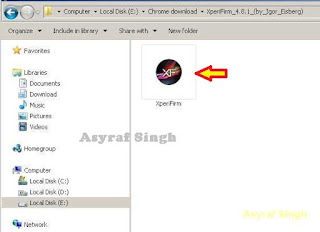
Xperia Firmware Downloader Tool icon - Then the program will open loading windows, to checking for update, requesting log in data, and downloading resource,
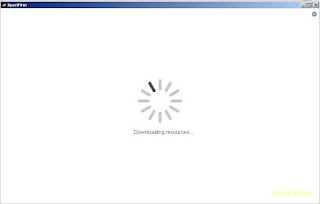
loading window xperifirm - When the program fully loaded, now you can select your Sony Xperia model and version in the left navigation windows. You can select Sony Xperia Z3 Tablet Compact and then select the model (SGP611 Wi-Fi).

Download Sony Xperia Z3 Tablet Compact Firmware - See on the right panel window, and you will find all country and market which support your Sony Xperia devices.
- For an example we select market from Dominican Republic, and we will know what is android version on the number shown at latest release. if available.

Download Sony Xperia Z3 Tablet Compact Firmware - To start download this firmware you can navigate your pointer to the right above of this window, under link donate Paypal you can click firmware build number shown.

Download Sony Xperia Z3 Tablet Compact Firmware - Then you will see xperia firmware downloader dialogue box appear on your screen. And click Download.

Download Sony Xperia Z3 Tablet Compact Firmware - This action will open a new windows browse for folder, you will be asked where will you save your firmware file on your computer. Usually directly go to desktop. But you can change to save to another folder, Once finish decide the folder you can click OK.
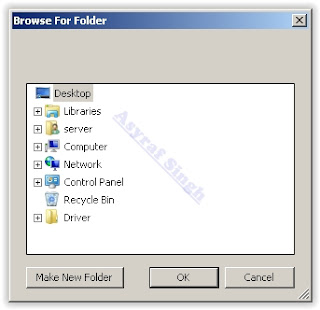
Download Sony Xperia Z3 Tablet Compact Firmware - And download process will start now, It will take a minute or hour depending your firmware file size.

Download Sony Xperia Z3 Tablet Compact Firmware - Once your download complete, you will see the following pop message “Unpacked Successfully!” Cl ick OK.

Unpacked Successfully xperia firmware download tool - The same “Unpacked successfully!” message will appear on the download dialog. Now you can Click “Close”.

Unpacked Successfully xperia firmware download tool - Now check your download location and you will find a new folder that contains your firmware files.
- Inside the folder download, you should find a number of files that look similar to the picture below.
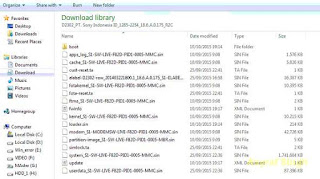
content firmware file - If your list of firmware files includes “fwinfo.xml” as shown below you can manually delete it before continuing to the FlashTool steps. You MUST delete this file otherwise your FTF firmware file will corrupt.

delete fwinfo.xml file - Good luck and feel free to download Sony Xperia Z3 Tablet Compact Firmware


Sunday, July 24, 2016
Guide Flash or Update Sony Xperia Z5 Compact Compact Using Sony PC Companion
[Guide] Flash or Update Sony Xperia Z5 Compact Compact Using Sony PC Companion.
Flash or Update Sony Xperia Z5 Compact. This guide will show you how to flash or Update Sony Xperia Z5 Compact using Sony PC Companion. Sony Xperia Z5 Compact released on 2015, October, This device comes with 4,6 Inches IPS capacitive touchscreen, 16M colors LCD , Run on Android OS, v5.1.1 (Lollipop), upgradable to v6.0 (Marshmallow), and supported with Qualcomm MSM8994 Snapdragon 810, Quad-core 1.5 GHz Cortex-A53 & Quad-core 2.0 GHz Cortex-A57 CPU, GPU Adreno 430, combined with 2 GB of RAM as their engine. And you can enjoy exciting 23 MP on main camera, and 5,1 MP on secondary camera.
By using Sony PC Companion you can do the following task below on your Sony Xperia Smartphone.
- Change the firmware on your Xperia Device
- Remove forgot Password, PIN, Pattern, Screen Lock.
- Performing Hard Reset or Factory Reset.
- Install the latest firmware.
Please always backup all data stored on your Xperia device. Now following this guide below.
- Download the latest Sony PC Companion Here.
- To run this software, your PC must meet a minimum requirements.
- Microsoft® Windows XP™ SP3 (32 bit),
- Vista (32/64 bit),Windows 7 (32/64 bit),
- Windows 8/8.1 (32/64 bit) or
- Windows 10*
- At least 2 GB of RAM
- 5 GB of free hard disk space.
- Intel® Pentium® 4, 3.6 GHz or equivalent AMD processor.
- Stabil internet connection or Internet broadband connection.
- One available USB 2.0 or USB 3.0 port and USB cable.
- Not password locked phone.
- Best tips to flash or update Sony Xperia Z5 Compact
- Use the original USB cable that came with your device.
- Connect your device directly to the computer without USB hubs in between.
- Dont disconnect your device during the update process.
- Dont connect or disconnect any other USB device during the update process.
- Dont transfer files between the computer and other USB device during the update process.
- Dont use or move your device during the update process.
- Close any program on your computer that youre not currently using.
Guide Flash or Upgrade Sony Xperia Z5 Compact.
- Install Sony PC Companion in your computer.
- Then launch this program.
- Actually, From here you can update your firmware, but when you connect the Sony Xperia Z5 Compact, it must be switched on and not in security or password screen.
- Then at the support zone click Start.
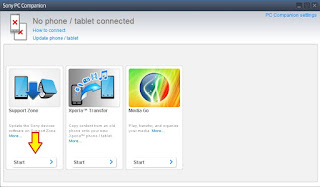
flash Sony Xperia Z5 Compact - If this is the first run, PC Companion will download some files.
- Once step 2 passed, your window will appear like this picture shown below.
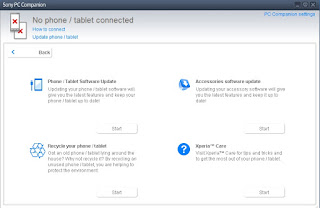
flash Sony Xperia Z5 Compact - On this window, select Phone / Tablet Software Update. then click Start.

flash Sony Xperia Z5 Compact - On the pop up window, select repair my phone/ tablet.
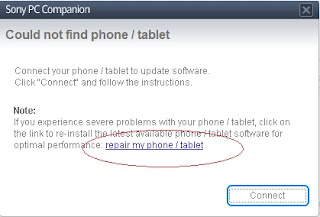
flash Sony Xperia Z5 Compact - If you using laptop or notebook, Connect your laptop to power supply since the update process.
- On the next screen, give tick on "I Understand that I need to know....", then click Next

flash Sony Xperia Z5 Compact - A warning window appears on screen, that say Data (Contact, Messages, Bookmarks,Calendar events, and setting) stored on Internal storage will be lost. So you must always backup all data and file. When you ready, click Continue.
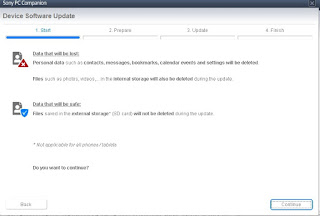
flash Sony Xperia Z5 Compact - On the next step, give tick the box and press Next to continue.
- Now PC Companion is preparing.
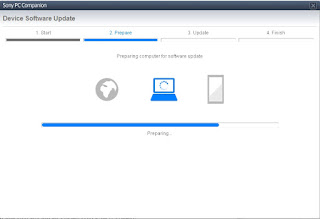
flash Sony Xperia Z5 Compact - On the next screen, give tick on "I have read and understood ...." then click Continoue.
- Then click Next.
- Now select phone / tablet model. you can search it on search box by type your phone model (Sony Xperia Z5 Compact).

flash Sony Xperia Z5 Compact - Then click Next.
- Following the instruction step to prepare the phone / tablet for the update.

flash Sony Xperia Z5 Compact - Disconnect the USB cable from your Sony Xperia Z5 Compact device and the computer.
- Turn Off your device and wait for 5 seconds.
- Connect the USB cable to the computer.
- Press and hold the volume down key on your device while connecting the USB cable.
- Wait until application automatically proceed to next step.
- Once your Sony Xperia Z5 Compact device detected by PC Companion downloading process will start automatically. then upload the new firmware to your Sony Xperia Z5 Compact device.
- When PC Companion finished with update process, disconnect the Sony Xperia Z5 Compact device and switch it on.
- Now your Sony Xperia Z5 Compact device is in factory condition,
- The custom data is erased and password protection is removed.
- Congratulation, your Sony Xperia Z5 Compact firmware is update now.


Tuesday, July 19, 2016
Flash or Update Sony Xperia Z3 Tablet Compact Using Sony PC Companion Guide
Flash or Update Sony Xperia Z3 Tablet Compact Using Sony PC Companion [Guide].
Flash or Update Sony Xperia Z3 Tablet Compact. This guide will show you how to flash or Update Sony Xperia Z3 Tablet Compact using Sony PC Companion. Sony Xperia Z3 Tablet Compact released on 2014, September, This device comes with 8,0 Inches TFT LCD capacitive touchscreen, 16M colors LCD, Run on Android OS, v4.4.2 (KitKat), v5.0.2 (Lollipop), planned upgrade to v6.0 (Marshmallow), and supported with Qualcomm MSM8974AB Snapdragon 801 chipset, Quad-core 2.5 GHz Krait 400 CPU, GPU Adreno 330, combined with 3 GB of RAM as their engine. And you can enjoy exciting 8,1 MP on main camera, and 2,2 MP on secondary camera.
By using Sony PC Companion you can do the following task below on your Sony Xperia Smartphone.
- Change the firmware on your Xperia Device
- Remove forgot Password, PIN, Pattern, Screen Lock.
- Performing Hard Reset or Factory Reset.
- Install the latest firmware.
Please always backup all data stored on your Xperia device. Now following this guide below.
- Download the latest Sony PC Companion Here.
- To run this software, your PC must meet a minimum requirements.
- Microsoft® Windows XP™ SP3 (32 bit),
- Vista (32/64 bit),Windows 7 (32/64 bit),
- Windows 8/8.1 (32/64 bit) or
- Windows 10*
- At least 2 GB of RAM
- 5 GB of free hard disk space.
- Intel® Pentium® 4, 3.6 GHz or equivalent AMD processor.
- Stabil internet connection or Internet broadband connection.
- One available USB 2.0 or USB 3.0 port and USB cable.
- Not password locked phone.
- Best tips to flash or update Sony Xperia Z3 Tablet Compact
- Use the original USB cable that came with your device.
- Connect your device directly to the computer without USB hubs in between.
- Dont disconnect your device during the update process.
- Dont connect or disconnect any other USB device during the update process.
- Dont transfer files between the computer and other USB device during the update process.
- Dont use or move your device during the update process.
- Close any program on your computer that youre not currently using.
Guide Flash or Upgrade Sony Xperia Z3 Tablet Compact.
- Install Sony PC Companion in your computer.
- Then launch this program.
- Actually, From here you can update your firmware, but when you connect the Sony Xperia Z3 Tablet Compact, it must be switched on and not in security or password screen.
- Then at the support zone click Start.
flash Sony Xperia Z3 Tablet Compact - If this is the first run, PC Companion will download some files.
- Once step 2 passed, your window will appear like this picture shown below.
flash Sony Xperia Z3 Tablet Compact - On this window, select Phone / Tablet Software Update. then click Start.
flash Sony Xperia Z3 Tablet Compact - On the pop up window, select repair my phone/ tablet.
flash Sony Xperia Z3 Tablet Compact - If you using laptop or notebook, Connect your laptop to power supply since the update process.
- On the next screen, give tick on "I Understand that I need to know....", then click Next.
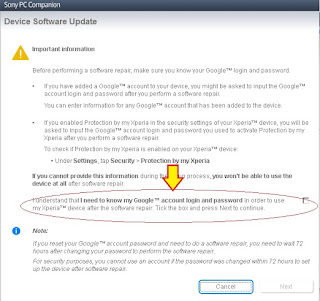
flash Sony Xperia Z3 Tablet Compact - A warning window appears on screen, that say Data (Contact, Messages, Bookmarks,Calendar events, and setting) stored on Internal storage will be lost. So you must always backup all data and file. When you ready, click Continue.
flash Sony Xperia Z3 Tablet Compact - On the next step, give tick the box and press Next to continue.
- Now PC Companion is preparing.
flash Sony Xperia Z3 Tablet Compact - On the next screen, give tick on "I have read and understood ...." then click Continoue.
- Then click Next.
- Now select phone / tablet model. you can search it on search box by type your phone model (Sony Xperia Z3 Tablet Compact).

flash Sony Xperia Z3 Tablet Compact - Then click Next.
- Following the instruction step to prepare the phone / tablet for the update.
flash Sony Xperia Z3 Tablet Compact - Disconnect the USB cable from your Sony Xperia Z3 Tablet Compact device and the computer.
- Turn Off your device and wait for 5 seconds.
- Connect the USB cable to the computer.
- Press and hold the volume down key on your device while connecting the USB cable.
- Wait until application automatically proceed to next step.
- Once your Sony Xperia Z3 Tablet Compact device detected by PC Companion downloading process will start automatically. then upload the new firmware to your Sony Xperia Z3 Tablet Compact device.
- When PC Companion finished with update process, disconnect the Sony Xperia Z3 Tablet Compact device and switch it on.
- Now your Sony Xperia Z3 Tablet Compact device is in factory condition,
- The custom data is erased and password protection is removed.
- Congratulation, your Sony Xperia Z3 Tablet Compact firmware is update now.


Subscribe to:
Posts (Atom)