Showing posts with label premium. Show all posts
Showing posts with label premium. Show all posts
Tuesday, July 26, 2016
Flash or Update Sony Xperia Z5 Premium Dual Using Sony PC Companion
Flash or Update Sony Xperia Z5 Premium Dual Using Sony PC Companion.
Flash or Update Sony Xperia Z5 Premium Dual. This guide will show you how to flash or Update Sony Xperia Z5 Premium Dual using Sony PC Companion. Sony Xperia Z5 Premium released on 2015, November, This device comes with 5,5 Inches IPS capacitive touchscreen, 16M colors LCD , Run on Android OS, v5.1.1 (Lollipop), upgradable to v6.0 (Marshmallow), and supported with Qualcomm MSM8994 Snapdragon 810 chipset, Quad-core 1.5 GHz Cortex-A53 & Quad-core 2.0 GHz Cortex-A57 CPU, GPU Adreno 430, combined with 3 GB of RAM as their engine. And you can enjoy exciting 23 MP on main camera, and 5,1 MP on secondary camera.
By using Sony PC Companion you can do the following task below on your Sony Xperia Smartphone.
- Change the firmware on your Xperia Device
- Remove forgot Password, PIN, Pattern, Screen Lock.
- Performing Hard Reset or Factory Reset.
- Install the latest firmware.
Please always backup all data stored on your Xperia device. Now following this guide below.
- Download the latest Sony PC Companion Here.
- To run this software, your PC must meet a minimum requirements.
- Microsoft® Windows XP™ SP3 (32 bit),
- Vista (32/64 bit),Windows 7 (32/64 bit),
- Windows 8/8.1 (32/64 bit) or
- Windows 10*
- At least 2 GB of RAM
- 5 GB of free hard disk space.
- Intel® Pentium® 4, 3.6 GHz or equivalent AMD processor.
- Stabil internet connection or Internet broadband connection.
- One available USB 2.0 or USB 3.0 port and USB cable.
- Not password locked phone.
- Best tips to flash or update Sony Xperia Z5 Premium Dual
- Use the original USB cable that came with your device.
- Connect your device directly to the computer without USB hubs in between.
- Dont disconnect your device during the update process.
- Dont connect or disconnect any other USB device during the update process.
- Dont transfer files between the computer and other USB device during the update process.
- Dont use or move your device during the update process.
- Close any program on your computer that youre not currently using.
Guide Flash or Upgrade Sony Xperia Z5 Premium Dual.
- Install Sony PC Companion in your computer.
- Then launch this program.
- Actually, From here you can update your firmware, but when you connect the Sony Xperia Z5 Premium Dual, it must be switched on and not in security or password screen.
- Then at the support zone click Start.
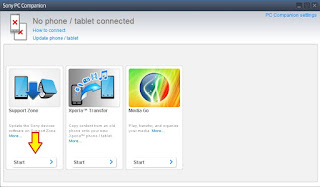
flash Sony Xperia Z5 Premium Dual - If this is the first run, PC Companion will download some files.
- Once step 2 passed, your window will appear like this picture shown below.
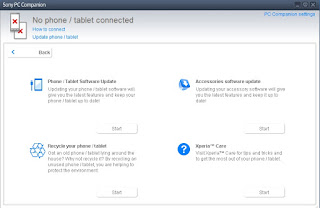
flash Sony Xperia Z5 Premium Dual - On this window, select Phone / Tablet Software Update. then click Start.

flash Sony Xperia Z5 Premium Dual - On the pop up window, select repair my phone/ tablet.
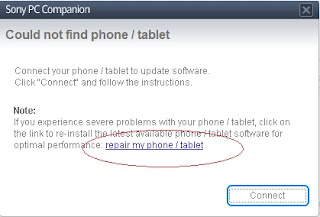
flash Sony Xperia Z5 Premium Dual - If you using laptop or notebook, Connect your laptop to power supply since the update process.
- On the next screen, give tick on "I Understand that I need to know....", then click Next

flash Sony Xperia Z5 Premium Dual - A warning window appears on screen, that say Data (Contact, Messages, Bookmarks,Calendar events, and setting) stored on Internal storage will be lost. So you must always backup all data and file. When you ready, click Continue.
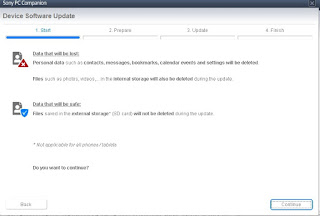
flash Sony Xperia Z5 Premium Dual - On the next step, give tick the box and press Next to continue.
- Now PC Companion is preparing.
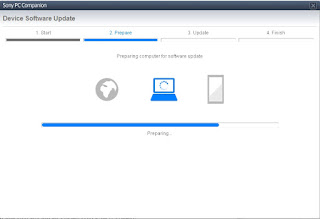
flash Sony Xperia Z5 Premium Dual - On the next screen, give tick on "I have read and understood ...." then click Continoue.
- Then click Next.
- Now select phone / tablet model. you can search it on search box by type your phone model (Sony Xperia Z5 Premium Dual)

flash Sony Xperia Z5 Premium Dual - Then click Next.
- Following the instruction step to prepare the phone / tablet for the update.

flash Sony Xperia Z5 Premium - Disconnect the USB cable from your Sony Xperia Z5 Premium Dual device and the computer.
- Turn Off your device and wait for 5 seconds.
- Connect the USB cable to the computer.
- Press and hold the volume down key on your device while connecting the USB cable.
- Wait until application automatically proceed to next step.
- Once your Sony Xperia Z5 Premium Dual device detected by PC Companion downloading process will start automatically. then upload the new firmware to your Sony Xperia Z5 Premium Dual device.
- When PC Companion finished with update process, disconnect the Sony Xperia Z5 Premium Dual device and switch it on.
- Now your Sony Xperia Z5 Premium Dual device is in factory condition,
- The custom data is erased and password protection is removed.
- Congratulation, your Sony Xperia Z5 Premium Dual firmware is update now.


Tuesday, July 19, 2016
Guide to Flash or Update Sony Xperia Z5 Premium Using Sony PC Companion
Guide to Flash or Update Sony Xperia Z5 Premium Using Sony PC Companion.
Flash or Update Sony Xperia Z5 Premium. This guide will show you how to flash or Update Sony Xperia Z5 Premium using Sony PC Companion. Sony Xperia Z5 Premium released on 2015, November, This device comes with 5,5 Inches IPS capacitive touchscreen, 16M colors LCD , Run on Android OS, v5.1.1 (Lollipop), upgradable to v6.0 (Marshmallow), and supported with Qualcomm MSM8994 Snapdragon 810 chipset, Quad-core 1.5 GHz Cortex-A53 & Quad-core 2.0 GHz Cortex-A57 CPU, GPU Adreno 430, combined with 3 GB of RAM as their engine. And you can enjoy exciting 23 MP on main camera, and 5,1 MP on secondary camera.
By using Sony PC Companion you can do the following task below on your Sony Xperia Smartphone.
- Change the firmware on your Xperia Device
- Remove forgot Password, PIN, Pattern, Screen Lock.
- Performing Hard Reset or Factory Reset.
- Install the latest firmware.
Please always backup all data stored on your Xperia device. Now following this guide below.
- Download the latest Sony PC Companion Here.
- To run this software, your PC must meet a minimum requirements.
- Microsoft® Windows XP™ SP3 (32 bit),
- Vista (32/64 bit),Windows 7 (32/64 bit),
- Windows 8/8.1 (32/64 bit) or
- Windows 10*
- At least 2 GB of RAM
- 5 GB of free hard disk space.
- Intel® Pentium® 4, 3.6 GHz or equivalent AMD processor.
- Stabil internet connection or Internet broadband connection.
- One available USB 2.0 or USB 3.0 port and USB cable.
- Not password locked phone.
- Best tips to flash or update Sony Xperia Z5 Premium
- Use the original USB cable that came with your device.
- Connect your device directly to the computer without USB hubs in between.
- Dont disconnect your device during the update process.
- Dont connect or disconnect any other USB device during the update process.
- Dont transfer files between the computer and other USB device during the update process.
- Dont use or move your device during the update process.
- Close any program on your computer that youre not currently using.
Guide Flash or Upgrade Sony Xperia Z5 Premium.
- Install Sony PC Companion in your computer.
- Then launch this program.
- Actually, From here you can update your firmware, but when you connect the Sony Xperia Z5 Premium, it must be switched on and not in security or password screen.
- Then at the support zone click Start.
flash Sony Xperia Z5 Premium - If this is the first run, PC Companion will download some files.
- Once step 2 passed, your window will appear like this picture shown below.
flash Sony Xperia Z5 Premium - On this window, select Phone / Tablet Software Update. then click Start.
flash Sony Xperia Z5 Premium - On the pop up window, select repair my phone/ tablet.
flash Sony Xperia Z5 Premium - If you using laptop or notebook, Connect your laptop to power supply since the update process
- On the next screen, give tick on "I Understand that I need to know....", then click Next
flash Sony Xperia Z5 Premium - A warning window appears on screen, that say Data (Contact, Messages, Bookmarks,Calendar events, and setting) stored on Internal storage will be lost. So you must always backup all data and file. When you ready, click Continue.
flash Sony Xperia Z5 Premium - On the next step, give tick the box and press Next to continue.
- Now PC Companion is preparing.
flash Sony Xperia Z5 Premium - On the next screen, give tick on "I have read and understood ...." then click Continoue.
- Then click Next.
- Now select phone / tablet model. you can search it on search box by type your phone model (Sony Xperia Z5 Premium)
flash Sony Xperia Z5 Premium - Then click Next.
- Following the instruction step to prepare the phone / tablet for the update.
flash Sony Xperia Z5 Premium - Disconnect the USB cable from your Sony Xperia Z5 Premium device and the computer.
- Turn Off your device and wait for 5 seconds.
- Connect the USB cable to the computer.
- Press and hold the volume down key on your device while connecting the USB cable.
- Wait until application automatically proceed to next step.
- Once your Sony Xperia Z5 Premium device detected by PC Companion downloading process will start automatically. then upload the new firmware to your Sony Xperia Z5 Premium device.
- When PC Companion finished with update process, disconnect the Sony Xperia Z5 Premium device and switch it on.
- Now your Sony Xperia Z5 Premium device is in factory condition,
- The custom data is erased and password protection is removed.
- Congratulation, your Sony Xperia Z5 Premium firmware is update now.
Monday, July 18, 2016
How to Download Sony Xperia Z5 Premium Dual Firmware Using XperiFirm Guide
How to Download Sony Xperia Z5 Premium Dual Firmware Using XperiFirm [Guide].
Download Sony Xperia Z5 Premium Dual Firmware. On this guide guidebelajar will show you how to download Sony Xperia Z5 Premium Dual Firmware Using XperiFirm. You can use this firmware to upgrade or downgrade the android system. Even you can fix Sony Xperia Z5 Premium Dual android from bootloop or bricked. XperiFirm is a suitable tool let you to download the current firmware for all Sony Xperia or Sony-Ericsson smartphones and tablets running Android operating system directly from your computer or laptop with internet connection. So you dont have to bother to find the Sony Xperia firmware on internet. Xperifirm is a free tool provided by IgorEisberg on XDA forum.
Sony Xperia Z5 Premium Dual has Dual SIM (Nano-SIM, dual stand-by), This device comes with 5,5 Inches IPS capacitive touchscreen, 16M colors LCD , Run on Android OS, v5.1.1 (Lollipop), upgradable to v6.0 (Marshmallow), and supported with Qualcomm MSM8994 Snapdragon 810 chipset, Quad-core 1.5 GHz Cortex-A53 & Quad-core 2.0 GHz Cortex-A57 CPU, GPU Adreno 430, combined with 3 GB of RAM as their engine. And you can enjoy exciting 23 MP on main camera, and 5,1 MP on secondary camera to capture your best moments on your life. And this device released on 2015, November.
Sony Xperia Z5 Premium Dual has Dual SIM (Nano-SIM, dual stand-by), This device comes with 5,5 Inches IPS capacitive touchscreen, 16M colors LCD , Run on Android OS, v5.1.1 (Lollipop), upgradable to v6.0 (Marshmallow), and supported with Qualcomm MSM8994 Snapdragon 810 chipset, Quad-core 1.5 GHz Cortex-A53 & Quad-core 2.0 GHz Cortex-A57 CPU, GPU Adreno 430, combined with 3 GB of RAM as their engine. And you can enjoy exciting 23 MP on main camera, and 5,1 MP on secondary camera to capture your best moments on your life. And this device released on 2015, November.
Basic Requirement to Run XperiFirm.
You need this file to run Xperia Firmware Downloader Tool based on your computer operating systems.
- Windows XP Service Pack 3.
- You must download and install .Net Framework 4.0 click here to get this file
- Windows Vista / 7
- You must download and install .Net Framework 4.6 RC click here to get this file
- Windows 8/8.1/10
- Pre installed
- Linux
- Enter the following lines once per computer:
- $ sudo apt-get install mono-complete
- $ sudo mozroots --import --machine --sync
- $ sudo certmgr -ssl -m https://software.sonymobile.com
- When asked you must enter Y, you should be asked to do so twice)
- Enter the following line to launch XperiFirm:
- $ mono XperiFirm.exe
- Apple OS X
- Install Mono for OS X:
- http://www.mono-project.com/download/
- Enter the following in Terminal:
- $ mono XperiFirm.exe
Guide To Download Sony Xperia Z5 Premium Dual Firmware.
If you have download all necessary file, now we need a primary tool to download Sony Xperia Firmware, follow this guide how to download Sony Xperia Z5 Premium Dual Firmware using Xperia Firmware Downloader Tool.
- Download Xperia Firmware Downloader Tool.
- When download finished extract and run this tool from your computer. Double click on Icon program shown below. to run this program your computer must be installed .NET framework 3.5 or above.
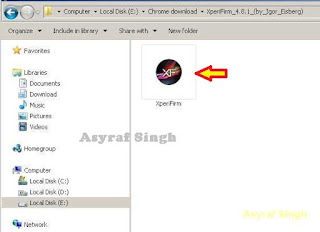
Xperia Firmware Downloader Tool icon - Then the program will open loading windows, to checking for update, requesting log in data, and downloading resource,

loading window xperifirm - When the program fully loaded, now you can select your Sony Xperia model and version in the left navigation windows. You can select Sony Xperia Z5 Premium Dual and then select the model (E6833 Dual).

Download Sony Xperia Z5 Premium Firmware - See on the right panel window, and you will find all country and market which support your Sony Xperia devices.
- For an example we select market from Algeria, and we will know what is android version on the number shown at latest release.

Download Sony Xperia Z5 Premium Dual Firmware - To start download this firmware you can navigate your pointer to the right above of this window, under link donate paypal you can click firmware build number shown.

Download Sony Xperia Z5 Premium Dual Firmware - Then you will see xperia firmware downloader dialogue box appear on your screen. And click Download.

Download Sony Xperia Z5 Premium Dual Firmware - This action will open a new windows browse for folder, you will be asked where will you save your firmware file on your computer. Usually directly go to desktop. But you can change to save to another folder, Once finish decide the folder you can click OK.
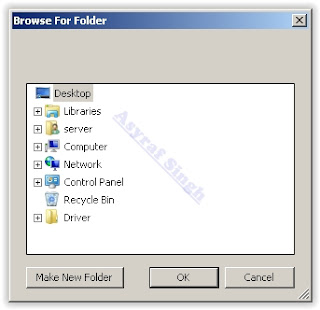
Download Sony Xperia Z5 Premium Dual Firmware - And download process will start now, It will take a minute or hour depending your firmware file size.

Download Sony Xperia Z5 Premium Dual Firmware - Once your download complete, you will see the following pop message “Unpacked Successfully!” Cl ick OK.

Unpacked Successfully xperia firmware download tool - The same “Unpacked successfully!” message will appear on the download dialog. Now you can Click “Close”.

Unpacked Successfully xperia firmware download tool - Now check your download location and you will find a new folder that contains your firmware files.
- Inside the folder download, you should find a number of files that look similar to the picture below.
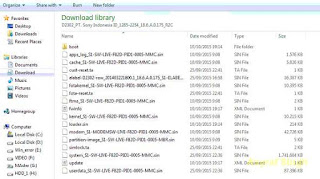
content firmware file - If your list of firmware files includes “fwinfo.xml” as shown below you can manually delete it before continuing to the FlashTool steps. You MUST delete this file otherwise your FTF firmware file will corrupt.

delete fwinfo.xml file - Good luck and feel free to download Sony Xperia Z5 Premium Dual Firmware.


Subscribe to:
Posts (Atom)