Showing posts with label features. Show all posts
Showing posts with label features. Show all posts
Monday, July 25, 2016
How to Install Android 6 0 1 Marshmallow Yoyo ROM on Galaxy Note 3 LTE N9005 Full Galaxy S7 Edge Features
Samsung Galaxy Note 3 LTE N9005 Yoyo custom ROM comes with tons of new features and is based on Android 6.0.1 Marshmallow. A quick list of the main features in Yoyo is given below and we are sure you’d love to use this on your Galaxy Note 3 LTE N9005:

base on Galaxy S7 edge G935FXXU1APD3
rooted / deodexed / zipaligned / busybox / deknoxed
multi languages
android 6.0.1
full Galaxy S7 edge features
full Galaxy Note5 features..
View my Flipboard Magazine.
÷ Prerequisites:
•This tutorial is only for installing Yoyo Android 6.0.1 ROM on Samsung Galaxy Note 3 LTE N9005. Please do not try on any other Galaxy Note 3 variants.
•Your phone should be rooted and have ClockworkMod recovery installed from before.
This tutorial will wipe out all your data. Proceed at your own risk.
•Perform a Dalvik Cache wipe before proceeding from the recovery mode.
•Samsung KIES will NOT detect your phone after installing this ROM because it is a custom firmware.
•Make sure you backup all your data in your phone before proceeding.
*Disclaimer:
Android Custom ROM fix ® provide various Firmware Updates and Rooting process along with Custom ROM,Modes,file are all belong to their owners/developers. The autor of this site or the developers are not responsible, if you damage or brick your device.Do it on your own risk and follow the instruction properly.
* Important:
Backup important files stored on your device before proceeding with the steps below, so that in case something goes wrong you’ll have backup of all your important files.

÷ How to Install Android 6.0.1 Marshmallow Yoyo ROM on Galaxy Note 3 LTE N9005 [ Full Galaxy S7 Edge Features].
Step 1 – Download Yoyo Android 6.0.1 ROM for Galaxy Note 3 to your computer.
Step 2 – Connect and mount your Galaxy Note 3 USB memory on your computer using the USB cable.
Step 3 – Now copy/paste the downloaded Android 6.0.1 ROM zip file to your SD card. Make sure the file is in the SD card root (not in any folder).
Step 4 – Then turn OFF your phone and disconnect from the USB cable.
Step 5 – Now to get in the Recovery Mode. Switch ON the phone while pressing and holding Volume Up + Home + Power buttons together.
Step 6 – Once you are in ClockworkMod Recovery, select perform a full data wipe by selecting “wipe data/factory reset” . Use the Power button to select everything while in the Recovery Mode.
Step 7 – Then, perform a cache wipe by selecting “wipe cache partition”.
Step 8 – Now this is optional, but it is recommended to perform a wipe of your dalvik cache as well. You will not get into boot loops or any other errors. From CWM recovery, go to ‘advanced’ and then select “wipe dalvik cache”.
Step 9 – Then go back to the main recovery screen and select “install zip from SD card”.
Step 10 – Now select “choose zip from sdcard”. Using your volume keys, navigate to the Android 6.0.1 ROM zip file that you copied to your SD card and select it using the Power button. Confirm the installation on the next screen and the installation procedure should start now.
Step 11 – After the installation completes, go to “+++++Go Back+++++” and reboot the phone by selecting “reboot system now” from the recovery menu .

Your Galaxy Note 3 LTE N9005 will boot now and it might take about 5 minutes to boot on your first time. So, please wait.
That’s it! Your Galaxy Note 3 should now have Yoyo Android 6.0.1 Marshmallow custom ROM installed on your phone! Go to Settings > About phone to verify.
For More Samsung Galaxy Note 3 LTE N9005 keep checking AndroidCustomROM Fix™®
Like this post? PLZ Hit the share buttons below to share this article with your friends on Facebook, Google + and Twitter.
PLZ Follow Us On Flipboard 4 More Latest Updates.
PLZ Use the comment box below to contribute more ideas & Suggestions .
Best Regards.
÷ Prerequisites:
•This tutorial is only for installing Yoyo Android 6.0.1 ROM on Samsung Galaxy Note 3 LTE N9005. Please do not try on any other Galaxy Note 3 variants.
•Your phone should be rooted and have ClockworkMod recovery installed from before.
This tutorial will wipe out all your data. Proceed at your own risk.
•Perform a Dalvik Cache wipe before proceeding from the recovery mode.
•Samsung KIES will NOT detect your phone after installing this ROM because it is a custom firmware.
•Make sure you backup all your data in your phone before proceeding.
*Disclaimer:
Android Custom ROM fix ® provide various Firmware Updates and Rooting process along with Custom ROM,Modes,file are all belong to their owners/developers. The autor of this site or the developers are not responsible, if you damage or brick your device.Do it on your own risk and follow the instruction properly.
* Important:
Backup important files stored on your device before proceeding with the steps below, so that in case something goes wrong you’ll have backup of all your important files.
÷ How to Install Android 6.0.1 Marshmallow Yoyo ROM on Galaxy Note 3 LTE N9005 [ Full Galaxy S7 Edge Features].
Step 1 – Download Yoyo Android 6.0.1 ROM for Galaxy Note 3 to your computer.
Step 2 – Connect and mount your Galaxy Note 3 USB memory on your computer using the USB cable.
Step 3 – Now copy/paste the downloaded Android 6.0.1 ROM zip file to your SD card. Make sure the file is in the SD card root (not in any folder).
Step 4 – Then turn OFF your phone and disconnect from the USB cable.
Step 5 – Now to get in the Recovery Mode. Switch ON the phone while pressing and holding Volume Up + Home + Power buttons together.
Step 6 – Once you are in ClockworkMod Recovery, select perform a full data wipe by selecting “wipe data/factory reset” . Use the Power button to select everything while in the Recovery Mode.
Step 7 – Then, perform a cache wipe by selecting “wipe cache partition”.
Step 8 – Now this is optional, but it is recommended to perform a wipe of your dalvik cache as well. You will not get into boot loops or any other errors. From CWM recovery, go to ‘advanced’ and then select “wipe dalvik cache”.
Step 9 – Then go back to the main recovery screen and select “install zip from SD card”.
Step 10 – Now select “choose zip from sdcard”. Using your volume keys, navigate to the Android 6.0.1 ROM zip file that you copied to your SD card and select it using the Power button. Confirm the installation on the next screen and the installation procedure should start now.
Step 11 – After the installation completes, go to “+++++Go Back+++++” and reboot the phone by selecting “reboot system now” from the recovery menu .
Your Galaxy Note 3 LTE N9005 will boot now and it might take about 5 minutes to boot on your first time. So, please wait.
That’s it! Your Galaxy Note 3 should now have Yoyo Android 6.0.1 Marshmallow custom ROM installed on your phone! Go to Settings > About phone to verify.
For More Samsung Galaxy Note 3 LTE N9005 keep checking AndroidCustomROM Fix™®
Like this post? PLZ Hit the share buttons below to share this article with your friends on Facebook, Google + and Twitter.
PLZ Follow Us On Flipboard 4 More Latest Updates.
PLZ Use the comment box below to contribute more ideas & Suggestions .
Best Regards.

Friday, July 22, 2016
How to Install BeanStalk v6 17 ROM DU Features on Galaxy S4 LTE A GT I9506

÷ About The ROM:
•Smoother than Butter
•Friendly Battery
•Tons of Features
•DirtyUnicorns Features
•Always Up-to-date
•100% Build from Source…
÷ Features:
CyanogenMod 13 based
PIE
Built-in Task Manager switcher
OnTheGo Mode
App Circle bar
System UI Tuner
Quicker system animations
Trimmed down fat and excess bloat
Option to enable all widgets
Numerous extra lock screen options
LCD Density
Custom original BeanStalk Wallpapers by skyliner33v
Custom BeanStalk boot animation by skyliner33v
3-minit battery support
Clock and date options
Contextual Header - Original and Polygraphic
Battery styles - Includes specific colors and styles. Also includes battery bar
Do not disturb option
Show notification count
Recent screen options
Customizable navigation bar
Use Omniswitch as default recent
Built-in screen record
Toast animations
App Circle bar
Gesture Anywhere
Disable FC warnings
Disable Immersive message
Force expanded Notifications
Configure scrolling cache
Build.prop MOD options to enable/disable tweaks as preferred
Less frequent Notification sounds options
CRT screen off/on options to specify how the animation shows
Enable/disable wake up on charge option
Superuser fully embedded into the build and accessed from settings menu
CM Performance options and features
Hide superuser icon
Developer options and advanced reboot enabled by default
Numerous cherry-picks and improvements throughout the build.. baked into the*
awesomeness of existing CM layout.
Numerous other options are hidden throughout..
View my Flipboard Magazine.
÷ Prerequisites:
This tutorial is only for installing Android 6.0.1 Marshmallow BeanStalk v6.17 ROM [DU-Features] on Samsung Galaxy S4 LTE-A GT-I9506 . Please do not try on any other Galaxy S4 variants.
•Your phone should be rooted and have ClockworkMod recovery installed from before.
•This tutorial will wipe out all your data. Proceed at your own risk.
•Perform a Dalvik Cache wipe before proceeding from the recovery mode.
•Samsung KIES will NOT detect your phone after installing this ROM because it is a custom firmware.
•Make sure you backup all your data in your phone before proceeding
*Disclaimer:
Android Custom ROM fix ® provide various Firmware Updates and Rooting process along with Custom ROM,Modes,file are all belong to their owners/developers. The autor of this site or the developers are not responsible, if you damage or brick your device.Do it on your own risk and follow the instruction properly.
* Important:
Backup important files stored on your device before proceeding with the steps below, so that in case something goes wrong you’ll have backup of all your important files.

÷ How to Install BeanStalk v6.17 ROM [DU-Features] on Galaxy S4 LTE-A GT-I9506.
Step 1 – Download BeanStalk v6.17 ROM [DU-Features] Android 6.0.1 Marshmallow and Google Apps for your Galaxy S4 LTE-A GT-I9506 to your computer.
Step 2 – Connect and mount your Galaxy S4 LTE-A GT-I9506 USB memory on your computer using the USB cable.
Step 3 – Now copy/paste the downloaded Android 6.0.1 ROM zip file and Google Appszip files to your SD card. Make sure the files are in the SD card root (not in any folder).
Step 4 – Then turn OFF your phone and disconnect from the USB cable.
Step 5 – Now to get in the Recovery Mode. Switch ON the phone while pressing and holding Volume Up + Home + Power buttons together
Step 6 – Once you are in ClockworkModRecovery, select perform a full data wipe by selecting “wipe data/factory reset”. Use the Power button to select everything while in the Recovery Mode.
Step 7 – Then, perform a cache wipe by selecting “wipe cache partition” .
Step 8 – Now this is optional, but it is recommended to perform a wipe of your dalvik cache as well. You will not get into boot loops or any other errors. From CWM recovery, go to ‘advanced’ and then select “wipe dalvik cache”.
Step 9 – Then go back to the main recovery screen and select “install zip from SD card”.
Step 10 – Now select “choose zip from sdcard”. Using your volume keys, navigate to the Android 6.0.1 ROM zip file that you copied to your SD card and select it using the Power button. Confirm the installation on the next screen and the installation procedure should start now.
Google Apps: Repeat the above step for the Gapps zip file as well and install it on your phone.
Step 11 – After the installation completes, go to “+++++Go Back+++++” and reboot the phone by selecting “reboot system now” from the recovery menu.

Your Samsung Galaxy S4 LTE-A GT-I9506 will boot now and it might take about 5 minutes to boot on your first time. So, please wait.
That’s it Your Galaxy S4 LTE-A GT-I9506 should now have BeanStalk v6.17 ROM [DU-Features] Android 6.0.1 Marshmallow latest build installed on your phone! Go to Settings > About phone to verify.
Via: XDA.
For More Samsung Galaxy S4 updates Keep Checking Android Custom ROM Fix™®
Like this post? PLZ Hit the share buttons below to share this article with your friends on Facebook, Google + and Twitter.
PLZ Follow Us On Flipboard 4 More Latest Updates.
PLZ Use the comment box below to contribute more ideas & Suggestions .
Best Regards.
÷ Prerequisites:
This tutorial is only for installing Android 6.0.1 Marshmallow BeanStalk v6.17 ROM [DU-Features] on Samsung Galaxy S4 LTE-A GT-I9506 . Please do not try on any other Galaxy S4 variants.
•Your phone should be rooted and have ClockworkMod recovery installed from before.
•This tutorial will wipe out all your data. Proceed at your own risk.
•Perform a Dalvik Cache wipe before proceeding from the recovery mode.
•Samsung KIES will NOT detect your phone after installing this ROM because it is a custom firmware.
•Make sure you backup all your data in your phone before proceeding
*Disclaimer:
Android Custom ROM fix ® provide various Firmware Updates and Rooting process along with Custom ROM,Modes,file are all belong to their owners/developers. The autor of this site or the developers are not responsible, if you damage or brick your device.Do it on your own risk and follow the instruction properly.
* Important:
Backup important files stored on your device before proceeding with the steps below, so that in case something goes wrong you’ll have backup of all your important files.
÷ How to Install BeanStalk v6.17 ROM [DU-Features] on Galaxy S4 LTE-A GT-I9506.
Step 1 – Download BeanStalk v6.17 ROM [DU-Features] Android 6.0.1 Marshmallow and Google Apps for your Galaxy S4 LTE-A GT-I9506 to your computer.
Step 2 – Connect and mount your Galaxy S4 LTE-A GT-I9506 USB memory on your computer using the USB cable.
Step 3 – Now copy/paste the downloaded Android 6.0.1 ROM zip file and Google Appszip files to your SD card. Make sure the files are in the SD card root (not in any folder).
Step 4 – Then turn OFF your phone and disconnect from the USB cable.
Step 5 – Now to get in the Recovery Mode. Switch ON the phone while pressing and holding Volume Up + Home + Power buttons together
Step 6 – Once you are in ClockworkModRecovery, select perform a full data wipe by selecting “wipe data/factory reset”. Use the Power button to select everything while in the Recovery Mode.
Step 7 – Then, perform a cache wipe by selecting “wipe cache partition” .
Step 8 – Now this is optional, but it is recommended to perform a wipe of your dalvik cache as well. You will not get into boot loops or any other errors. From CWM recovery, go to ‘advanced’ and then select “wipe dalvik cache”.
Step 9 – Then go back to the main recovery screen and select “install zip from SD card”.
Step 10 – Now select “choose zip from sdcard”. Using your volume keys, navigate to the Android 6.0.1 ROM zip file that you copied to your SD card and select it using the Power button. Confirm the installation on the next screen and the installation procedure should start now.
Google Apps: Repeat the above step for the Gapps zip file as well and install it on your phone.
Step 11 – After the installation completes, go to “+++++Go Back+++++” and reboot the phone by selecting “reboot system now” from the recovery menu.
Your Samsung Galaxy S4 LTE-A GT-I9506 will boot now and it might take about 5 minutes to boot on your first time. So, please wait.
That’s it Your Galaxy S4 LTE-A GT-I9506 should now have BeanStalk v6.17 ROM [DU-Features] Android 6.0.1 Marshmallow latest build installed on your phone! Go to Settings > About phone to verify.
Via: XDA.
For More Samsung Galaxy S4 updates Keep Checking Android Custom ROM Fix™®
Like this post? PLZ Hit the share buttons below to share this article with your friends on Facebook, Google + and Twitter.
PLZ Follow Us On Flipboard 4 More Latest Updates.
PLZ Use the comment box below to contribute more ideas & Suggestions .
Best Regards.
Wednesday, July 20, 2016
How to Update Galaxy S6 Edge SM G928P to Marshmallow 6 0 1 June VPU2BPD2 OTA Security Patch Enhanced Features
Today Samsung Currently Pushing VPU2BPD2 Update to the Galaxy S6 edge+ - SM-G928P on its network that includes a security update, as well as now displaying which security patch your phone has and bug fixes. It is recommended you keep your device updated to the latest software so that you don’t experience any flaws or drops in reliability.
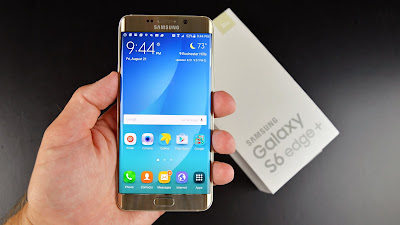
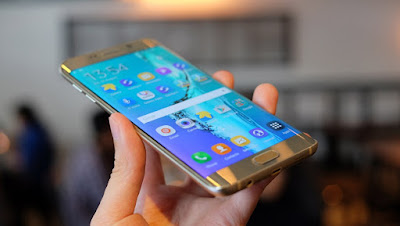
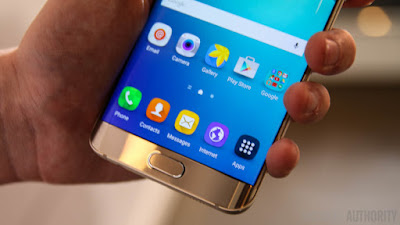
G928PVPU2BPD2 is based on the latest Marshmallow 6.0.1 for the Galaxy S6 edge+ - SM-G928P
Follow our guide below to download the update and install it yourself.
The Update brings the following changes:
•The security of your device has been improved.
•Device stability improvements, bug fixes.
•New and / or enhanced features.
•Further improvements to performance.
| Model | SM-G928P |
| Model name | Galaxy S6 edge+ |
| Country | Spint (cdma) |
| Version | Android 6.0.1 |
| Changelist | 7231607 |
| Build date | Fri, 22 Apr 2016 05:30:27 +0000 |
| Security Patch Level | 2016-05-01 |
| Product code | SPR |
| PDA | G928PVPU2BPD2 |
| CSC | G928PSPT2BPD2 |
View my Flipboard Magazine.
*Disclaimer:
Custom ROM fix ® provide various Firmware Updates and Rooting process along with Custom ROM,Modes,file are all belong to their owners/developers. The autor of this site or the developers are not responsible, if you damage or brick your device.Do it on your own risk and follow the instruction properly.
* Important:
Backup important files stored on your device before proceeding with the steps below, so that in case something goes wrong you’ll have backup of all your important files.
÷ How To Update Galaxy S6 edge+ - SM-G928P to Marshmallow 6.0.1 Stock Firmware DDU2BPD3 [Security Patches / Bug Fixes]
Download Samsung Galaxy S6 edge+ - SM-G928P UVU2APD7 Firmware .
1- Extract (unzip) the firmware file
2- Download Odin v3.10.7
3- Extract Odin ZIP file
4- Open Odin v.3.10.6
5- Reboot Phone in Download Mode (press and hold Home + Power + Volume Down buttons)
6- Connect phone and wait until you get a blue sign in Odin
7- Add the firmware file to AP / PDA
Make sure re-partition is NOT ticked
8- Click the start button, sit back and wait few minutes.
That’s it! Your Galaxy S6 edge+ - SM-G928P should now have Marshmallow 6.0.1 June update on your phone! Go to Settings > About phone to verify.
Like this post? PLZ Hit the share buttons below to share this article with your friends on Facebook, Google + and Twitter.
PLZ Follow Us On Flipboard 4 More Samsung Galaxy S6 edge+ Latest Updates.
PLZ Use the comment box below to contribute more ideas & Suggestions .
Best Regards.
*Disclaimer:
Custom ROM fix ® provide various Firmware Updates and Rooting process along with Custom ROM,Modes,file are all belong to their owners/developers. The autor of this site or the developers are not responsible, if you damage or brick your device.Do it on your own risk and follow the instruction properly.
* Important:
Backup important files stored on your device before proceeding with the steps below, so that in case something goes wrong you’ll have backup of all your important files.
÷ How To Update Galaxy S6 edge+ - SM-G928P to Marshmallow 6.0.1 Stock Firmware DDU2BPD3 [Security Patches / Bug Fixes]
Download Samsung Galaxy S6 edge+ - SM-G928P UVU2APD7 Firmware .
1- Extract (unzip) the firmware file
2- Download Odin v3.10.7
3- Extract Odin ZIP file
4- Open Odin v.3.10.6
5- Reboot Phone in Download Mode (press and hold Home + Power + Volume Down buttons)
6- Connect phone and wait until you get a blue sign in Odin
7- Add the firmware file to AP / PDA
Make sure re-partition is NOT ticked
8- Click the start button, sit back and wait few minutes.
That’s it! Your Galaxy S6 edge+ - SM-G928P should now have Marshmallow 6.0.1 June update on your phone! Go to Settings > About phone to verify.
Like this post? PLZ Hit the share buttons below to share this article with your friends on Facebook, Google + and Twitter.
PLZ Follow Us On Flipboard 4 More Samsung Galaxy S6 edge+ Latest Updates.
PLZ Use the comment box below to contribute more ideas & Suggestions .
Best Regards.
Subscribe to:
Posts (Atom)