Showing posts with label f1. Show all posts
Showing posts with label f1. Show all posts
Thursday, July 28, 2016
Download Android Marshmallow 6 0 1 stock firmware for Octopus A83 F1 tablet

Download Android Marshmallow 6.0.1 stock firmware for Octopus A83 F1 tablet from here or here.
Firmware details
Archive: BT1010_ANDROID6.0_20160509
Image: sun8iw6p1_android_bt1010_uart0.img
Archive file size: 259 MB
Platform: Allwinner A83 / UltraOcta-A83
Build number: octopus_bt1010-eng 6.0.1 MMB29M 20160503 test-keys
FW version: v6.0rc4
Pixels: 800 x 1280
Style: Octopus A83 F1
Company: Allwinner
Caution: Please do not update firmware unless you know what you are doing, you really want it or it is absolutely necessary. Firmware updates may occasionally have bad results, like bricking your device, temporarily or permanently. The firmware update process is done entirely at your own risk. Before attempting to update the firmware, back up your data.
Don’t miss any of our future video tutorials, follow us on Youtube. Like us on Facebook. Add us in your circles on Google+. Watch our photo albums on Flickr. Subscribe now to our newsletter.
Build number: octopus_bt1010-eng 6.0.1 MMB29M 20160503 test-keys
FW version: v6.0rc4
Pixels: 800 x 1280
Style: Octopus A83 F1
Company: Allwinner
Caution: Please do not update firmware unless you know what you are doing, you really want it or it is absolutely necessary. Firmware updates may occasionally have bad results, like bricking your device, temporarily or permanently. The firmware update process is done entirely at your own risk. Before attempting to update the firmware, back up your data.
Don’t miss any of our future video tutorials, follow us on Youtube. Like us on Facebook. Add us in your circles on Google+. Watch our photo albums on Flickr. Subscribe now to our newsletter.

Wednesday, July 27, 2016
Guide How to Hard Reset Factory Reset Android OPPO F1 PLUS
Guide How to Hard Reset / Factory Reset Android OPPO F1 PLUS.
Hard Reset OPPO F1 PLUS. On this guide guidebelajar will show you how to Hard Reset / Factory Reset Android OPPO F1 PLUS. Perform Hard reset on android device will wipe or deleted all data stored and App installed on internal phone memory, so you must backup all data before perform it. But data stored on MicroSD will not be affected. If you have set up device with your Google accounts, your contact and and email information is automatically backed up to the Gmail server.
OPPO F1 PLUS is the smartphone released on March, 2016. with 5,5 Inchi wide AMOLED capacitive touchscreen, 16M colors, work on Android OS, v5.1 (Lollipop), and supported with Mediatek MT6755 Helio P10 chipset, Processor Octa-core 2.0 GHz Cortex-A53, combined with 4 GB of RAM, 13 MP on primary camera and 16 MP on secondary camera.
Some People say that Hard reset process is call with master reset or factory reset. Many people asking why shoud we perform hard reset to our phone. The logical answer that can I say for this asking is :
- Restore OPPO F1 PLUS to Default Factory Setting.
- Because we will sell our OPPO F1 PLUS Android phones
- There are many bug on OPPO F1 PLUS.
- We have forgotten on PIN or Patern Lock at OPPO F1 PLUS.
- We want to remove all personal data and setting that was stored in OPPO F1 PLUS device.
- OPPO F1 PLUS has a persistent problem that cannot be solved.
- We will give our OPPO F1 PLUS away to some one else, and we dont want that one know everything about our secret data, so we have to erase all data before back up it.
- Our OPPO F1 PLUS has been lagging and stuck on android logo, this call with bootloop.
- and many other reason.
What to do for Solve and Recovery if OPPO F1 PLUS get hang or not responding or malfunctions or hang or stuck or freezing or bricked problem ?
OPPO F1 PLUS has included some factory default applications to make this phone can work well when first used. OPPO F1 PLUS use OPPO user interface version 3.0. So we can add the other applications from the Google Play Store like WhatsApp, BBM, LINE, Facebook, Path, Skype, Instagram and more. But we have to know that some of the applications in Google Play Store are not always compatible with OPPO F1 PLUS , this application can make our mobile phone into a problem like hang or stuck or brick or frozen or broken. Sometimes the phone is always booting only show the Oppo logo or LCD touch screen does not respond to our fingers touch. When the phone gets an issue, then we have to force a soft reset or shutdown or reboot to clean up temporary files and cache. If this problem still occurs then we have to do a hard reset or reformat. You should always perform the necessary backup before performing a hard reset, because all data and applications installed will be deleted after performing a hard reset on this OPPO F1 PLUS devices.
1st Methode. Hard Reset OPPO F1 PLUS Using Software Menu :
- Make sure your batery is fully charged, Recomended you have 80% of battery capacity
- Then Backup your OPPO F1 PLUS . see this guide
- Open the application tray, pointing up located in the middle at the bottom of the display screen
- Go to menu: Setting >
- Select Back Up and Reset>
- Factory Data Reset >
- Reset Phone
- Choose Erase everything to confirm that you already to perform hard reset on OPPO F1 PLUS
- OPPO F1 PLUS will continue to hard reset process to restore factory default.
- You can not use this methode to reset your phone if it lost or stolen.
2ndMethode. Hard Reset OPPO F1 PLUS Using Hardware Keys:
- Make sure your battery is fully charged, we recomended that your battery has 80% power
- Always BackUp your important data that store in OPPO F1 PLUS . see this guide
- Turn Off your OPPO F1 PLUS by hold and press Power Button for a second.
- Release any SIM card and SD card that was installed on your OPPO F1 PLUS smartphone.
- Then press and hold a combination key Power button + Volume Down.

hard reset oppo F1 PLUS - The phone will vibrate and show Oppo Logo on screen, but all button are still pressed.

oppo logo - hard reset oppo F1 PLUS - Now, release All button when your phone show language choice on screen.

Hard Reset OPPO F1 PLUS - You can use volume Down and Volume Up to navigate all menu. and Power Button for confirm your choice. or you can tap menu on screen.
- Now select English to enter ColorOS Recovery.

ColorOS Recovery - Reset Android OPPO F1 PLUS - Then select Wipe Data and cache.

Hard Reset OPPO F1 PLUS - On the next screen select Wipe All Data and Removable Applications.

Wipe All Data and Removable Applications - On the next screen you will show a confirmation about Wipe All Data and Removable Applications, because All Data and Removable Applications will be wiped, this operation can not be undone. And now select OK.

Wipe All Data and Removable Applications - Now, you will see a wipe data and cache process to wipe all data stored on your OPPO F1 PLUS phone.

- Wait untill everything finish,
- If you see a message that wiped data successfully appear o screen, its mean you have successfully perform hard reset on this OPPO F1 PLUS phone.

- Now, select reboot, to reboot your device.

Hard Reset OPPO F1 PLUS. - Select OK to confirm reboot OPPO F1 PLUS .
- Finish, Now you have successfully Hard Reset / Factory Reset Android OPPO F1 PLUS.


Video Guide.
Tuesday, July 26, 2016
Download Android KitKat 4 4 2 stock firmware for CoolPad F1 8297 smartphone

Download Android KitKat 4.4.2 stock firmware for CoolPad F1 8297 smartphone from here or here. Download previous firmware from here.
Firmware details
Archive name: CP_8297_4.4.2_20160520
Image: CP_8297_SJJL_ROM_20160520A
Archive file size:505 MB
Model: CoolPad 8297 smartphone
Project: bird92_wet_jb9
Platform: Mediatek MT6592
Build number: Coolpad/Coolpad8297/Coolpad8297:4.4.2/KOT49H/4.4.068.P1.150729.8297:user/test-keys
Caution: Please do not update firmware unless you know what you are doing, you really want it or it is absolutely necessary. Firmware updates may occasionally have bad results, like bricking your device, temporarily or permanently. The firmware update process is done entirely at your own risk. Before attempting to update the firmware, back up your data.
Don’t miss any of our future video tutorials, follow us on Youtube. Like us on Facebook. Add us in your circles on Google+. Watch our photo albums on Flickr. Subscribe now to our newsletter.
Friday, July 22, 2016
Guide How to Flash Stock ROM on Android OPPO F1 PLUS to Fix a Bootloop Removing Malware Stuck
[Guide] How to Flash Stock ROM on Android OPPO F1 PLUS to Fix a Bootloop, Removing Malware, Stuck.
Flash Stock ROM on Android OPPO F1 PLUS. This guide will help you to Flash Stock ROM on Android OPPO F1 PLUS Smartphone. By flashing your Android phone you can get something new on your phone, such as new experience to use latest update of Stock ROM, or new installed Stock ROM after your phone died or bootloop, and much more. Before we proceed to flash this Android OPPO F1 PLUS Smartphone, let we know what is detail specification of this Android smartphone. OPPO F1 PLUS was released On 2016, March. And OPPO F1 PLUS is the smartphone that comes with 5,5 Inches AMOLED capacitive touchscreen, 16M colors, Run on Android OS, v5.1 (Lollipop) - ColorOS 3.0 UI as it Operating System and supported with Mediatek MT6755 Helio P10 Chipset, Octa-core 2.0 GHz Cortex-A53 CPU, GPU Mali-T860MP2, combined with 4 GB of RAM as their engine. And you can enjoy exciting 13 MP on main camera, and 16 MP on secondary camera.
Now, we start to flash Stock ROM on Android OPPO F1 PLUS Smartphone. Just follow this guide below carefully. take your own risk, a damage or broken phone by following this tutorial is not our responsibility.
Guide Flash Stock ROM OPPO F1 PLUS.
Before you flash OPPO F1 PLUS you must read this instruction carefully, so. you can get best result at the end of your flash.
Preparation.
- Make sure you have enough battery capacity on your OPPO F1 PLUS. Its recomended you have at least 80% of battery capacity.
- Always backup your important file (contact, music, video, app) that stored on OPPO F1 PLUS,
- Prepare the Memory Card / SD Card which has a V-Gen Brand. For some reason OPPO F1 PLUS does not recognized besides V-Gen Memory card.
- Then download OPPO F1 PLUS Stock ROM.
- Oppo F1 PLUS
- Once download finish, now copy Stock ROM from computer to the phone memory or SD Card. but note that you copy this ROM at outside not to the public folder for easy finding. (if you download ROM Via PC)
- But, Stock ROM can be download directly from yourAndroid phone. And you must have a good and stable internet connection for it, such as Wi-Fi connection.
- Rom download directly from the Android phone located in the File Manager / phone / download.
http://downloads.oppo.com.s3.amazonaws.com/firmware/X9009/X9009EX_11_OTA_013_all_201604131943.zip
Flashing Stock ROM.
- To start flashing Stock ROM on OPPO F1 PLUS you must enter Recovery Mode. how to do it ?
- Press and Hold Power Button + Volume Down.
- Then you will see menu like this picture. You can select English
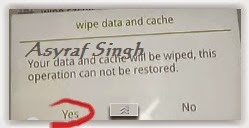
- Select Wipe data and cache by pressing the power button. for Up and down choice, use the volume keys Up / Down, on the next Popup screen select Wipe your data cache to make faster process.
- If appears confirmation you can select : "YES"
- Then you will bring to previous menu, and you can select Install form sd.
- Now you will see 2 options. From mobile phone storage & form SD,.
- Previously you have copy firmware file on SD Card, So. now you must select From SD. and now you can see your Firmware file name on this screen.(Stock rom name is similar as shown on the picture below)
- Select this file name using Power Button
- For Up or Down navigation you can use volume Up and Down Button.
- Then you will see a confirmation page, and you can select yes to proceed this flash on OPPO F1 PLUS
- Just wait the process finish updating system, and your OPPO F1 PLUS will ask to you to reboot the device.
- Now you have finished flash Stock ROM on Android OPPO F1 PLUS Smartphone.
 |
| Flash Bootloop OPPO F1 PLUS |
 |
| Flash Bootloop OPPO F1 PLUS |
 |
| Flash Bootloop OPPO F1 PLUS |
 |
| Flash Bootloop OPPO F1 PLUS |
 |
| Flash Bootloop OPPO F1 PLUS |
 |
| Flash Bootloop OPPO F1 PLUS |
 |
| Flash Bootloop OPPO F1 PLUS |
 |
| Flash Bootloop OPPO F1 PLUS |
Tuesday, July 19, 2016
Guide How to Flash Stock ROM on Android OPPO F1 to Fix a Bootloop Removing Malware Stuck
[Guide] How to Flash Stock ROM on Android OPPO F1 to Fix a Bootloop, Removing Malware, Stuck.
Flash Stock ROM on Android OPPO F1. This guide will help you to Flash Stock ROM on Android OPPO F1 Smartphone. By flashing your Android phone you can get something new on your phone, such as new experience to use latest update of Stock ROM, or new installed Stock ROM after your phone died or bootloop, and much more. Before we proceed to flash this Android OPPO F1 Smartphone, let we know what is detail specification of this Android smartphone. OPPO F1 was released On 2016, January. And OPPO F1 is the smartphone that comes with 5,0 Inches IPS LCD capacitive touchscreen, 16M colors, Run on Android OS, v5.1 (Lollipop) - ColorOS 2.1 UI as it Operating System and supported with Qualcomm MSM8939v2 Snapdragon 616 Chipset, Quad-core 1.7 GHz Cortex-A53 & quad-core 1.0 GHz Cortex-A53 CPU, GPU Adreno 405, combined with 3 GB of RAM as their engine. And you can enjoy exciting 13 MP on main camera, and 8 MP on secondary camera.
Now, we start to flash Stock ROM on Android OPPO F1 Smartphone. Just follow this guide below carefully. take your own risk, a damage or broken phone by following this tutorial is not our responsibility.
Guide Flash Stock ROM OPPO F1.
Before you flash OPPO F1 you must read this instruction carefully, so. you can get best result at the end of your flash.
Preparation.
- Make sure you have enough battery capacity on your OPPO F1. Its recomended you have at least 80% of battery capacity.
- Always backup your important file (contact, music, video, app) that stored on OPPO F1,
- Prepare the Memory Card / SD Card which has a V-Gen Brand. For some reason OPPO F1 does not recognized besides V-Gen Memory card.
- Then download OPPO F1 Stock ROM.
- Oppo F1
- Once download finish, now copy Stock ROM from computer to the phone memory or SD Card. but note that you copy this ROM at outside not to the public folder for easy finding. (if you download ROM Via PC)
- But, Stock ROM can be download directly from yourAndroid phone. And you must have a good and stable internet connection for it, such as Wi-Fi connection.
- Rom download directly from the Android phone located in the File Manager / phone / download.
http://downloads.oppo.com.s3.amazonaws.com/firmware/F1/F1EX_11_OTA_009_all_201603221513.zip
Flashing Stock ROM.
- To start flashing Stock ROM on OPPO F1 you must enter Recovery Mode. how to do it ?
- Press and Hold Power Button + Volume Down.
- Then you will see menu like this picture. You can select English
- Select Wipe data and cache by pressing the power button. for Up and down choice, use the volume keys Up / Down, on the next Popup screen select Wipe your data cache to make faster process.
- If appears confirmation you can select : "YES"
- Then you will bring to previous menu, and you can select Install form sd.
- Now you will see 2 options. From mobile phone storage & form SD,.
- Previously you have copy firmware file on SD Card, So. now you must select From SD. and now you can see your Firmware file name on this screen.(Stock rom name is similar as shown on the picture below)
- Select this file name using Power Button
- For Up or Down navigation you can use volume Up and Down Button.
- Then you will see a confirmation page, and you can select yes to proceed this flash on OPPO F1
- Just wait the process finish updating system, and your OPPO F1 will ask to you to reboot the device.
- Now you have finished flash Stock ROM on Android OPPO F1 Smartphone.
|
| Flash Bootloop OPPO F1 |
|
| Flash Bootloop OPPO F1 |
|
| Flash Bootloop OPPO F1 |
|
| Flash Bootloop OPPO F1 |
|
| Flash Bootloop OPPO F1 |
|
| Flash Bootloop OPPO F1 |
|
| Flash Bootloop OPPO F1 |
|
| Flash Bootloop OPPO F1 |
Subscribe to:
Posts (Atom)