Showing posts with label z3. Show all posts
Showing posts with label z3. Show all posts
Tuesday, July 26, 2016
Guide How to Download Sony Xperia Z3 Plus Dual Firmware Using XperiFirm
[Guide] How to Download Sony Xperia Z3 Plus Dual Firmware Using XperiFirm.
Download Sony Xperia Z3 Plus Dual Firmware. This device also known as Sony Xperia Z3 Plus, Xperia Z4, Sony E6533, On this guide guidebelajar will show you how to download Sony Xperia Z3 Plus Dual Firmware Using XperiFirm. You can use this firmware to upgrade or downgrade the android system. Even you can fix Sony Xperia Z3 Plus Dual android from bootloop or bricked. XperiFirm is a suitable tool let you to download the current firmware for all Sony Xperia or Sony-Ericsson smartphones and tablets running Android operating system directly from your computer or laptop with internet connection. So you dont have to bother to find the Sony Xperia firmware on internet. Xperifirm is a free tool provided by IgorEisberg on XDA forum.
Sony Xperia Z3 Plus Dual has Dual SIM (Nano-SIM, dual stand-by), This device comes with 5,2 Inches IPS capacitive touchscreen, 16M colors LCD, Run on Android OS, v5.0 (Lollipop), planned upgrade to v6.0 (Marshmallow), and supported with Qualcomm MSM8994 Snapdragon 810, Quad-core 1.5 GHz Cortex-A53 & Quad-core 2.0 GHz Cortex-A57 CPU, GPU Adreno 430, combined with 3 GB of RAM as their engine. And you can enjoy exciting 20,7 MP on main camera, and 5,1 MP on secondary camera to capture your best moments on your life. And this device released on 2015, May.
Sony Xperia Z3 Plus Dual has Dual SIM (Nano-SIM, dual stand-by), This device comes with 5,2 Inches IPS capacitive touchscreen, 16M colors LCD, Run on Android OS, v5.0 (Lollipop), planned upgrade to v6.0 (Marshmallow), and supported with Qualcomm MSM8994 Snapdragon 810, Quad-core 1.5 GHz Cortex-A53 & Quad-core 2.0 GHz Cortex-A57 CPU, GPU Adreno 430, combined with 3 GB of RAM as their engine. And you can enjoy exciting 20,7 MP on main camera, and 5,1 MP on secondary camera to capture your best moments on your life. And this device released on 2015, May.
Basic Requirement to Run XperiFirm.
You need this file to run Xperia Firmware Downloader Tool based on your computer operating systems.
- Windows XP Service Pack 3.
- You must download and install .Net Framework 4.0 click here to get this file
- Windows Vista / 7
- You must download and install .Net Framework 4.6 RC click here to get this file
- Windows 8/8.1/10
- Pre installed
- Linux
- Enter the following lines once per computer:
- $ sudo apt-get install mono-complete
- $ sudo mozroots --import --machine --sync
- $ sudo certmgr -ssl -m https://software.sonymobile.com
- When asked you must enter Y, you should be asked to do so twice)
- Enter the following line to launch XperiFirm:
- $ mono XperiFirm.exe
- Apple OS X
- Install Mono for OS X:
- http://www.mono-project.com/download/
- Enter the following in Terminal:
- $ mono XperiFirm.exe
Guide To Download Sony Xperia Z3 Plus Dual Firmware.
If you have download all necessary file, now we need a primary tool to download Sony Xperia Firmware, follow this guide how to download Sony Xperia Z3 Plus Dual Firmware using Xperia Firmware Downloader Tool.
- Download Xperia Firmware Downloader Tool.
- When download finished extract and run this tool from your computer. Double click on Icon program shown below. to run this program your computer must be installed .NET framework 3.5 or above.
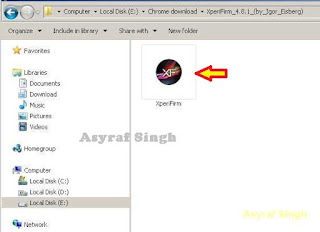
Xperia Firmware Downloader Tool icon - Then the program will open loading windows, to checking for update, requesting log in data, and downloading resource,
loading window xperifirm - When the program fully loaded, now you can select your Sony Xperia model and version in the left navigation windows. You can select Sony Xperia Z3 Plus Dual and then select the model (E6533 dual).

Download Sony Xperia Z3 Plus Dual Firmware - See on the right panel window, and you will find all country and market which support your Sony Xperia devices.
- For an example we select market from Algeria, and we will know what is android version on the number shown at latest release. if available.

Download Sony Xperia Z3 Plus Dual Firmware - To start download this firmware you can navigate your pointer to the right above of this window, under link donate Paypal you can click firmware build number shown.

Download Sony Xperia Z3 Plus Dual Firmware - Then you will see xperia firmware downloader dialogue box appear on your screen. And click Download.

Download Sony Xperia Z3 Plus Dual Firmware - This action will open a new windows browse for folder, you will be asked where will you save your firmware file on your computer. Usually directly go to desktop. But you can change to save to another folder, Once finish decide the folder you can click OK.
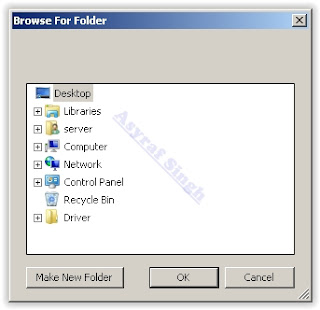
Download Sony Xperia Z3 Plus Dual Firmware - And download process will start now, It will take a minute or hour depending your firmware file size.

Download Sony Xperia Z3 Plus Dual Firmware - Once your download complete, you will see the following pop message “Unpacked Successfully!” Cl ick OK.

Unpacked Successfully xperia firmware download tool - The same “Unpacked successfully!” message will appear on the download dialog. Now you can Click “Close”.

Unpacked Successfully xperia firmware download tool - Now check your download location and you will find a new folder that contains your firmware files.
- Inside the folder download, you should find a number of files that look similar to the picture below.
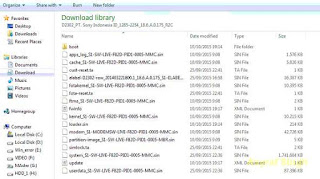
content firmware file - If your list of firmware files includes “fwinfo.xml” as shown below you can manually delete it before continuing to the FlashTool steps. You MUST delete this file otherwise your FTF firmware file will corrupt.

delete fwinfo.xml file - Good luck and feel free to download Sony Xperia Z3 Plus Dual Firmware


Monday, July 25, 2016
Download Stock Rom para Sony XPERIA Z3 Compact D5803 Baixar Rom Original de Fabrica para Sony XPERIA Z3 Compact D5803

Download Stock Rom / Firmware para Sony XPERIA Z3 Compact D5803
Modelo................................................D5803 (firmware 23.0.A.2.105)
Região................................................Reino Unido
Idioma.................................................Multi Linguagem
Versão do Android..............................4.4.4 kit kat
Procedimento de Instalação...............Flash Pelo Flashtool (tutorial aqui)
Tamanho............................................ 1.15 GB
Formato do arquivo............................ FTF
Downloads
Mega
Google Drive
Créditos
XperiaFimware
Atenção
Nós do Stock Rom não nos responsabilizamos por quaisquer danos causados nos dispositivos.
A responsabilidade é inteiramente do usuário.
Para mais informações, leia os Termos do site AQUI.
Termos de Busca
Baixar firmware oficial para Sony Xperia3 Compact D5803 Como atualizar Sony Xperia3 Compact D5803
Rom original e oficial para Sony Xperia3 Compact D5803 Rom Brasileira para Sony Xperia3 Compact D5803
Download Rom Stock para Sony Xperia3 Compact D5803 limpa, sem vinculo ou logo de operadora.
Possibilidade de reviver ou ressuscitar seu Sony Xperia3 Compact D5803. Possibilidade de resolver loop ou boot infinito doSony Xperia3 Compact D5803
Sony Xperia3 Compact D5803 liga e só fica na tela ou logo da Sony Xperia3 Compact D5803 só fica na tela de apresentação ou tela de inicio.
Pode flashear essa rom do Sony Xperia3 Compact D5803 para resolver esses problemas
Guide How to Download Sony Xperia Z3 Tablet Compact Firmware Using XperiFirm
[Guide] How to Download Sony Xperia Z3 Tablet Compact Firmware Using XperiFirm.
Download Sony Xperia Z3 Tablet Compact Firmware. On this guide guidebelajar will show you how to download Sony Xperia Z3 Tablet Compact Firmware Using XperiFirm. You can use this firmware to upgrade or downgrade the android system. Even you can fix Sony Xperia Z3 Tablet Compact android from bootloop or bricked. XperiFirm is a suitable tool let you to download the current firmware for all Sony Xperia or Sony-Ericsson smartphones and tablets running Android operating system directly from your computer or laptop with internet connection. So you dont have to bother to find the Sony Xperia firmware on internet. Xperifirm is a free tool provided by IgorEisberg on XDA forum.
Sony Xperia Z3 Tablet Compact released on 2014, September, This device comes with 8,0 Inches TFT LCD capacitive touchscreen, 16M colors LCD, Run on Android OS, v4.4.2 (KitKat), v5.0.2 (Lollipop), planned upgrade to v6.0 (Marshmallow), and supported with Qualcomm MSM8974AB Snapdragon 801 chipset, Quad-core 2.5 GHz Krait 400 CPU, GPU Adreno 330, combined with 3 GB of RAM as their engine. And you can enjoy exciting 8,1 MP on main camera, and 2,2 MP on secondary camera to capture your best moments on your life.
Sony Xperia Z3 Tablet Compact released on 2014, September, This device comes with 8,0 Inches TFT LCD capacitive touchscreen, 16M colors LCD, Run on Android OS, v4.4.2 (KitKat), v5.0.2 (Lollipop), planned upgrade to v6.0 (Marshmallow), and supported with Qualcomm MSM8974AB Snapdragon 801 chipset, Quad-core 2.5 GHz Krait 400 CPU, GPU Adreno 330, combined with 3 GB of RAM as their engine. And you can enjoy exciting 8,1 MP on main camera, and 2,2 MP on secondary camera to capture your best moments on your life.
Basic Requirement to Run XperiFirm.
You need this file to run Xperia Firmware Downloader Tool based on your computer operating systems.
- Windows XP Service Pack 3.
- You must download and install .Net Framework 4.0 click here to get this file
- Windows Vista / 7
- You must download and install .Net Framework 4.6 RC click here to get this file
- Windows 8/8.1/10
- Pre installed
- Linux
- Enter the following lines once per computer:
- $ sudo apt-get install mono-complete
- $ sudo mozroots --import --machine --sync
- $ sudo certmgr -ssl -m https://software.sonymobile.com
- When asked you must enter Y, you should be asked to do so twice)
- Enter the following line to launch XperiFirm:
- $ mono XperiFirm.exe
- Apple OS X
- Install Mono for OS X:
- http://www.mono-project.com/download/
- Enter the following in Terminal:
- $ mono XperiFirm.exe
Guide To Download Sony Xperia Z3 Tablet Compact Firmware.
If you have download all necessary file, now we need a primary tool to download Sony Xperia Firmware, follow this guide how to download Sony Xperia Z3 Tablet Compact Firmware using Xperia Firmware Downloader Tool.
- Download Xperia Firmware Downloader Tool.
- When download finished extract and run this tool from your computer. Double click on Icon program shown below. to run this program your computer must be installed .NET framework 3.5 or above.
Xperia Firmware Downloader Tool icon - Then the program will open loading windows, to checking for update, requesting log in data, and downloading resource,
loading window xperifirm - When the program fully loaded, now you can select your Sony Xperia model and version in the left navigation windows. You can select Sony Xperia Z3 Tablet Compact and then select the model (SGP611 Wi-Fi).

Download Sony Xperia Z3 Tablet Compact Firmware - See on the right panel window, and you will find all country and market which support your Sony Xperia devices.
- For an example we select market from Dominican Republic, and we will know what is android version on the number shown at latest release. if available.

Download Sony Xperia Z3 Tablet Compact Firmware - To start download this firmware you can navigate your pointer to the right above of this window, under link donate Paypal you can click firmware build number shown.

Download Sony Xperia Z3 Tablet Compact Firmware - Then you will see xperia firmware downloader dialogue box appear on your screen. And click Download.

Download Sony Xperia Z3 Tablet Compact Firmware - This action will open a new windows browse for folder, you will be asked where will you save your firmware file on your computer. Usually directly go to desktop. But you can change to save to another folder, Once finish decide the folder you can click OK.
Download Sony Xperia Z3 Tablet Compact Firmware - And download process will start now, It will take a minute or hour depending your firmware file size.

Download Sony Xperia Z3 Tablet Compact Firmware - Once your download complete, you will see the following pop message “Unpacked Successfully!” Cl ick OK.
Unpacked Successfully xperia firmware download tool - The same “Unpacked successfully!” message will appear on the download dialog. Now you can Click “Close”.
Unpacked Successfully xperia firmware download tool - Now check your download location and you will find a new folder that contains your firmware files.
- Inside the folder download, you should find a number of files that look similar to the picture below.
content firmware file - If your list of firmware files includes “fwinfo.xml” as shown below you can manually delete it before continuing to the FlashTool steps. You MUST delete this file otherwise your FTF firmware file will corrupt.
delete fwinfo.xml file - Good luck and feel free to download Sony Xperia Z3 Tablet Compact Firmware


Saturday, July 23, 2016
Guide Flash or Update Sony Xperia Z3 Dual Using Sony PC Companion
[Guide] Flash or Update Sony Xperia Z3 Dual Using Sony PC Companion.
Flash or Update Sony Xperia Z3 Dual. This guide will show you how to flash or Update Sony Xperia Z3 Dual using Sony PC Companion. Sony Xperia Z3 released on 2014, September, This device comes with 5,2 Inches IPS capacitive touchscreen, 16M colors LCD, Run on Android OS, v4.4.4 (KitKat), v5.0 (Lollipop), planned upgrade to v6.0 (Marshmallow), and supported with Qualcomm MSM8974AC Snapdragon 801 chipset, Quad-core 2.5 GHz Krait 400 CPU, GPU Adreno 330, combined with 3 GB of RAM as their engine. And you can enjoy exciting 20,7 MP on main camera, and 2,2 MP on secondary camera. This version has Dual SIM (Nano-SIM, dual stand-by).
By using Sony PC Companion you can do the following task below on your Sony Xperia Smartphone.
- Change the firmware on your Xperia Device
- Remove forgot Password, PIN, Pattern, Screen Lock.
- Performing Hard Reset or Factory Reset.
- Install the latest firmware.
Please always backup all data stored on your Xperia device. Now following this guide below.
- Download the latest Sony PC Companion Here.
- To run this software, your PC must meet a minimum requirements.
- Microsoft® Windows XP™ SP3 (32 bit),
- Vista (32/64 bit),Windows 7 (32/64 bit),
- Windows 8/8.1 (32/64 bit) or
- Windows 10*
- At least 2 GB of RAM
- 5 GB of free hard disk space.
- Intel® Pentium® 4, 3.6 GHz or equivalent AMD processor.
- Stabil internet connection or Internet broadband connection.
- One available USB 2.0 or USB 3.0 port and USB cable.
- Not password locked phone.
- Best tips to flash or update Sony Xperia Z3 Dual
- Use the original USB cable that came with your device.
- Connect your device directly to the computer without USB hubs in between.
- Dont disconnect your device during the update process.
- Dont connect or disconnect any other USB device during the update process.
- Dont transfer files between the computer and other USB device during the update process.
- Dont use or move your device during the update process.
- Close any program on your computer that youre not currently using.
Guide Flash or Upgrade Sony Xperia Z3 Dual.
- Install Sony PC Companion in your computer.
- Then launch this program.
- Actually, From here you can update your firmware, but when you connect the Sony Xperia Z3 Dual, it must be switched on and not in security or password screen.
- Then at the support zone click Start.
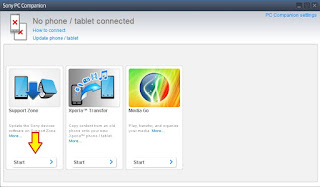
flash Sony Xperia Z3 Dual - If this is the first run, PC Companion will download some files.
- Once step 2 passed, your window will appear like this picture shown below.
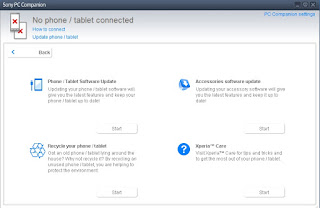
flash Sony Xperia Z3 Dual - On this window, select Phone / Tablet Software Update. then click Start.

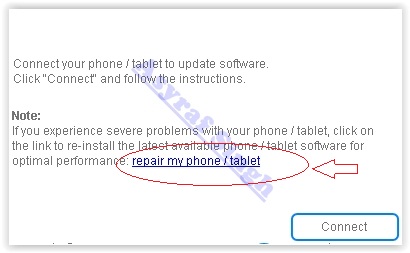
flash Sony Xperia Z3 Dual - On the pop up window, select repair my phone/ tablet.
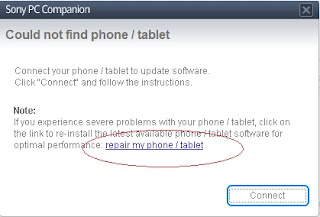
flash Sony Xperia Z3 Dual - If you using laptop or notebook, Connect your laptop to power supply since the update process.
- On the next screen, give tick on "I Understand that I need to know....", then click Next

flash Sony Xperia Z3 Dual - A warning window appears on screen, that say Data (Contact, Messages, Bookmarks,Calendar events, and setting) stored on Internal storage will be lost. So you must always backup all data and file. When you ready, click Continue.
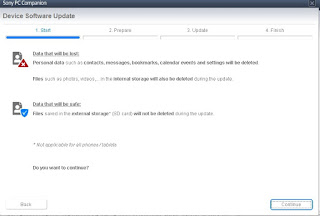
flash Sony Xperia Z3 Dual - On the next step, give tick the box and press Next to continue.
- Now PC Companion is preparing.
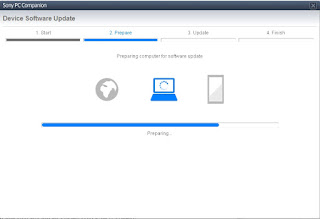
flash Sony Xperia Z3 Dual - On the next screen, give tick on "I have read and understood ...." then click Continoue.
- Then click Next.
- Now select phone / tablet model. you can search it on search box by type your phone model (Sony Xperia Z3 Dual).

flash Sony Xperia Z3 Dual - Then click Next.
- Following the instruction step to prepare the phone / tablet for the update.

flash Sony Xperia Z3 Dual - Disconnect the USB cable from your Sony Xperia Z3 Dual device and the computer.
- Turn Off your device and wait for 5 seconds.
- Connect the USB cable to the computer.
- Press and hold the volume down key on your device while connecting the USB cable.
- Wait until application automatically proceed to next step.
- Once your Sony Xperia Z3 Dual device detected by PC Companion downloading process will start automatically. then upload the new firmware to your Sony Xperia Z3 Dual device.
- When PC Companion finished with update process, disconnect the Sony Xperia Z3 Dual device and switch it on.
- Now your Sony Xperia Z3 Dual device is in factory condition,
- The custom data is erased and password protection is removed.
- Congratulation, your Sony Xperia Z3 Dual firmware is update now.


Guide Hard Reset Samsung Z3 To Restore Factory Setting Remove Forgot Pattern PIN Password
[Guide] Hard Reset Samsung Z3 To Restore Factory Setting & Remove Forgot Pattern/PIN/Password.
Hard Reset Samsung Z3. Samsung Z3 has this version (Z300H/DD (India)), This device is released on October, 2015. And todays guidebelajar will explain to you how to perform hard reset on Samsung Z3 smartphone. Please keep in mind, this tutorial will erase all data saved on your internal memory. Samsung Z3 is the smartphone with 5,0 Inchi Super AMOLED capacitive touchscreen, 16M colors, work on Tizen OS, v2.3, upgradable to v2.4, and supported with Quad-core 1.3 GHz, Spreadtrum chipset, combined with 1 GB of RAM, 8 MP on primary camera and 5 MP on secondary camera to capture best moment and make a selfie on your life.
Most of Android user say that Hard reset process is call with master reset or factory reset. Many people asking why shoud we perform hard reset to our phone. The logical answer that can I say for this asking is :
Most of Android user say that Hard reset process is call with master reset or factory reset. Many people asking why shoud we perform hard reset to our phone. The logical answer that can I say for this asking is :
- We will give our Samsung Z3 away to some one else, and we dont want that one know everything about our secret data, so we have to erase all data before back up it.
- There are many bug on Samsung Z3.
- Because we will sell our Samsung Z3 Android phones
- We want to remove all personal data and setting that was stored in Samsung Z3.device.
- Our Samsung Z3 has been lagging and stuck on android logo, this call with bootloop
- Samsung Z3 has a persistent problem that cannot be solved.
- We have forgotten on PIN or Patern Lock at Samsung Z3.
- and many other reason.
1st Methode. Hard Reset Samsung Z3 Using Menu :
- Make sure your batery is fully charged, Recomended you have 80% of battery capacity
- Then Backup your Samsung Z3. See This Guide
- Go to menu: System Setting >
- Select Backup and Reset >
- Factory Data Reset >
- Reset Phone
- Choose Erase everything to confirm that you already to perform hard reset on Samsung Z3
- Samsung Z3 will continue to hard reset process to restore factory default.
2ndMethode. Hard Reset Samsung Z3 Using Hardware Keys:
- Make sure your battery is fully charged, we recomended that your battery has 80% power
- Always BackUp your important data that store in Samsung Z3. see this guide
- Turn Off your Samsung Z3 by hold and press Power Button for a second.
- Release any SIM card and SD card that was installed on your Samsung Z3 smartphone.
- Then press and hold together a combination button Volume Up + Home Button + Power button at same time for a seconds.

Hard Reset Samsung Z3 - Then you will see Samsung Galaxy J7 Logo. On this step release Power Button only, while keep holding Volume Up and Home Button.

Samsung Z3 Logo - Release all button when your device enter Tizen System Recovery.

Tizen System Recovery. - On this screen you can select menu Phone Reinitialization. Scroll down using Volume Down button, and confirm it using Power Button.

Phone Reinitialization samsung z3 - Then Select Yes. This will erase all data on your device except SD-Card.

hard reset samsung z3 - Now, wait the hard reset process to restoring setting to factory defaults.

hard reset process - After a few minute hard reset process will finished, then reboot your device
- Done, your hard reset process success now.


Video Guide.
Wednesday, July 20, 2016
Hard Reset Android Sony Xperia Z3 to Remove PIN Pattern Lock Password Guide
Hard Reset Android Sony Xperia Z3+ to Remove PIN, Pattern Lock, Password [Guide].
Reset Android Sony Xperia Z3+. Sony Xperia Z3+ also known as Sony Xperia Z3 Plus, Xperia Z4, Sony E6553. Todays guidebelajar will explain to you how to perform hard reset on Sony Xperia Z3+ smartphone. Sony Xperia Z3+ is the smartphone comes with 5,2 Inches IPS capacitive touchscreen, 16M colors LCD , Run on Android OS, v5.0 (Lollipop), planned upgrade to v6.0 (Marshmallow), and supported with Qualcomm MSM8994 Snapdragon 810, Quad-core 1.5 GHz Cortex-A53 & Quad-core 2.0 GHz Cortex-A57 CPU, GPU Adreno 430, combined with 3 GB of RAM as their engine. And you can enjoy exciting 20,7 MP on main camera, and 5,1 MP on secondary camera. This ony Xperia Z3+ is released on 2015, May.
On this guide guidebelajar will show you how to Hard Reset Android Sony Xperia Z3+ to Remove Password, PIN, Pattern Lock. So, if you have any problem such as forgotten password, or forgotten PIN, even forgotten Pattern lock you will enable to enter and use phone menu. You must remove forgotten password or PIN to use your Sony Xperia Z3+ normally. this is a simple guide you can follow. To remove any password or PIN stored on your Sony Xperia Z3+, you must perform a hard reset or factory reset on this device. Perform hard reset on any android device will remove or erase or wipe all data stored on your device. So, you must always backup all data before lost it.
On this guide we use PC companion, you can download this PC companion from here. PC Companion will install the latest firmware on your phone and will reset it to the Factory setting.
You must meet a minumum system requirement to run PC Companion ;
On this guide guidebelajar will show you how to Hard Reset Android Sony Xperia Z3+ to Remove Password, PIN, Pattern Lock. So, if you have any problem such as forgotten password, or forgotten PIN, even forgotten Pattern lock you will enable to enter and use phone menu. You must remove forgotten password or PIN to use your Sony Xperia Z3+ normally. this is a simple guide you can follow. To remove any password or PIN stored on your Sony Xperia Z3+, you must perform a hard reset or factory reset on this device. Perform hard reset on any android device will remove or erase or wipe all data stored on your device. So, you must always backup all data before lost it.
On this guide we use PC companion, you can download this PC companion from here. PC Companion will install the latest firmware on your phone and will reset it to the Factory setting.
You must meet a minumum system requirement to run PC Companion ;
- You must have at least 2 GB of RAM
- 5 GB of free hard disk space.
- Intel® Pentium® 4, 3.6 GHz or equivalent AMD processor.
- Stabil internet connection or Internet broadband connection.
- One available USB 2.0 or USB 3.0 port and USB cable.
- Windows Operating System, such as ;
- Microsoft® Windows XP™ SP3 (32 bit),
- Vista (32/64 bit),Windows 7 (32/64 bit),
- Windows 8/8.1 (32/64 bit) or
- Windows 10*
Guide to Hard Reset Android Sony Xperia Z3+.
- Make sure your computer connect to internet.
- If possible, back up all data stored on your Sony Xperia Z3+
- Install PC Companion on your computer or laptop.
- Then, Run this program, and you will see window with 3 options on screen.

Hard Reset Android Sony Xperia Z3+ - You can see the status is no phone connected, therefore you must connect yuor Sony Xperia Z3+ to the PC or computer using USB cable.
- Once it connected, PC companion willd detect your phone, and you should see picture shown below on your screen.

Hard Reset Android Sony Xperia Z3+ - If your phone have available update you will see this on your screen.

Hard Reset Android Sony Xperia Z3+ - If you do not want to update your Sony Xperia Z3+ just click remind me latter.
- Then the program will return to the main menu, now click Support Zone and click start.

Hard Reset Android Sony Xperia Z3+ - Now, Wait for the program to install the appropriate add-on.
- On the next window, you can click "Phone / Tablet Software Update" and click start.

Hard Reset Android Sony Xperia Z3+ - Select "repair my phone / tablet".

Hard Reset Android Sony Xperia Z3+ - To continue the next step, you must tick on I understand that I need ... and then click Next.

Hard Reset Android Sony Xperia Z3+ - Now follow the instructions and accept all informations. you will be reminded the data stored in the phone memory will be lost and click Continue.

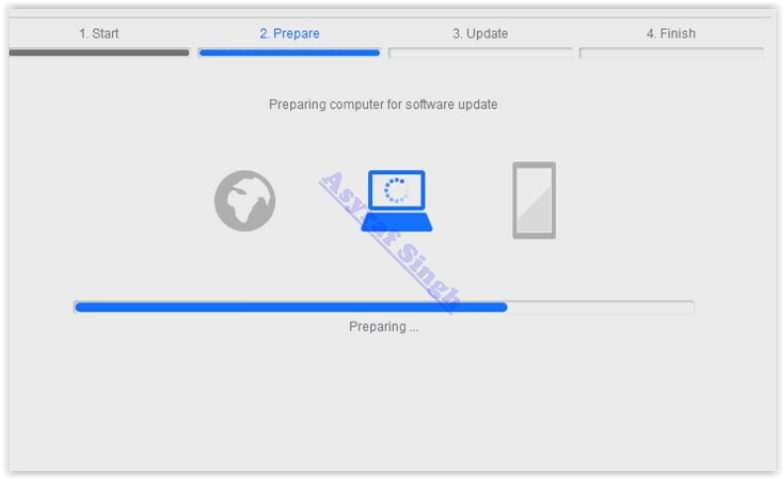
Hard Reset Android Sony Xperia Z3+ Dual - Please be patient and wait until preparing computer for software update is complete.

Hard Reset Android Sony Xperia Z3+ - Afterwards you can choose your phone / tablet model.

Hard Reset Android Sony Xperia Z3+ - Then click next.
- Now, Disconnect Sony Xperia Z3+ from computer.
- Make sure the battery is fully charged or minimum you have at least 80% of battery capacity.
- Then, Turn off the Sony Xperia Z3+ and wait for 5 seconds.
- Then, connect the USB cable to the computer again.
- While press and hold the volume down button on the Sony Xperia Z3+.

Hard Reset Android Sony Xperia Z3+ - Now, the update of your Sony Xperia Z3+ has started.

Hard Reset Android Sony Xperia Z3+ - Just wait until update is complete.
- Once update finish, you can disconnect the phone from computer.
- Now, Turn On the Sony Xperia Z3+.
- Note, that the first start of the phone after update may take a while.
- Finish.






Subscribe to:
Posts (Atom)