Showing posts with label mobile. Show all posts
Showing posts with label mobile. Show all posts
Friday, July 29, 2016
Cherry Mobile FlareXL Factory Firmware

How to flash this rom using sp flash tool, sorry we didnt teach or post any tutorial here this blog exclusively for the people having a experience on smartphone flashing a mobile tech as well. if you dont know how you doing much better stay away. or you wanna try or explore from it read first here our DISCLAIMER.
Factory Firmware Code:
MT6592__CherryMobile__X340__FlareXL__4.4.4__FlareXL_X340_V07_20150326
Download Cherry Mobile FlareXL Factory Rom
Download Flasher

Cherry Mobile FlareLiteQuad Android 4 4 2 kitkat Pac File Rom

Model Brand : CherryMobile
Model Device: FlareLiteQuad
AndrVersion : 4.4.2
BaseBand CPU: SP7731GEA
CompileDate : 1426844225
Project Ver : Cherry_Flare Lite Quad_V1_150320
Model Ext : Q894
Download Rom
Download Flasher
Flashing of any smart Phones or Feature Phone is not always safe. Kindly read our disclaimer, before proceeding or else you can getting any problems towards.
Disclaimer: Flashing a firmware is not without any risks.
If you dont do it properly, you might render your phone inoperable.
If you decide to proceed we wont be liable to whatever might get wrong "neither we could provide technical support" just leave a comment or contact us on our google mail.
Factory Firmware Code:
SP7731GEA_FlareLiteQuad_4.4.2_Cherry_Flare_Lite_Quad_V1_150320
Password: FlareLiteQuadbyJHUNpanabO
Thursday, July 28, 2016
Guide Flash Bricked Bootloop LG OPTIMUS L90 LG D415RD T Mobile Using LG Flash Tool KDZ method
[Guide] Flash Bricked - Bootloop LG OPTIMUS L90 (LG D415RD T-Mobile) Using LG Flash Tool (KDZ method).
Flash LG OPTIMUS L90 (LG D415RD T-Mobile ). LG OPTIMUS L90 (LG D415RD T-Mobile ) is the android smartphone which announced in February 2014, and exactly released on 2014, March. Guidebelajar on this guide will explain to you how to flashing android device on LG OPTIMUS L90 (LG D415RD T-Mobile ) with easy and simple step. Flashing in android is the same way like fresh install on the windows PC, So by perform a flash on Android you will give a new performance like a new phone. One reason that you should perform a flash your android is because your android get bootloop or when you failed to install Stock ROM Mod.This LG OPTIMUS L90 (LG VS986 T-Mobile ) is the smartphone with 4,7 IPS LCD capacitive touchscreen, 16M colors, work on Android OS, v4.4.2 (KitKat) and supported with Quad-core 1.2 GHz Cortex-A7 CPU, Qualcomm MSM8226 Snapdragon 400 chipset, combined with 1 GB of RAM and 5 MP of Main camera and 1,3 MP on secondary camera.
Now you can follow this guide if you have bootloop problems on LG OPTIMUS L90 (LG D415RD T-Mobile ) but accidental LG OPTIMUS L90 (LG D415RD T-Mobile ) is not installed recovery. In this guide Im not offering recovery twrp or Cwm. CMW is a recovery that already in recovery mode for customization of the device such that the LG OPTIMUS L90 (LG D415RD T-Mobile ) with a variety of additional functions in it such as backup / restore, installations and others that are not contained in the standard recovery mode. Generally, in case of a default recovery bootloop LG OPTIMUS L90 (LG D415RD T-Mobile ) will go missing in case of bootloop. whereas the original recvery cant help when there hardbrick.
Now, follow the instruction list bellow, do it with your own risk.
Requirement Tool For Flash LG OPTIMUS L90 (LG D415RD T-Mobile ).
Before you perform flash or install your firmware on LG OPTIMUS L90 (LG D415RD T-Mobile ) ,
you must download all requirement tool below ;
you must download all requirement tool below ;
- Download Stock Rom LG OPTIMUS L90 (LG D415RD T-Mobile ).
- This Stock is KDZ file, remember to copy this KDZ file into LG Flash Tool 2014 folder
- Check the firmware that match with your phone version, for , below
LG KDZ Firmware No.ModelSuffixVersionBuyerBuyer NameDownload1.LG D415RD3TMORDD41520C_00TMOT-Mobile2.LG D415RD3TMORDD41520B_00TMOT-Mobile3.LG D415RDATMORDD41520C_00TMOT-Mobile4.LG D415RDATMORDD41520B_00TMOT-Mobile- Download Driver LG: Here
- Latest LG FlashTool : Here
#1. Guide To Flash LG OPTIMUS L90 (LG D415RD T-Mobile )
Please follow this guide carefully to flash LG OPTIMUS L90 (LG D415RD T-Mobile ) .
- Make sure you have download all requirement tool above
- Then Install the drivers with your phone connected with your Computer, when it finished disconnect your LG OPTIMUS L90 (LG D415RD T-Mobile ) phone from your computer.
- Now turn your LG OPTIMUS L90 (LG D415RD T-Mobile ) phone off, then continuously click on the volume up button and connect your phone to your PC,
- Now, enter your LG OPTIMUS L90 (LG D415RD T-Mobile ) into download mode. ( visit this guide or see at the end of this post)
- Run LGFlashTool2014.exe.
- If you cannot run LGFlashTool2014.exe, You must install Visual C++ Runtime Library, get here
- There are two options to flash your LG OPTIMUS L90 (LG D415RD T-Mobile ) .
- Normal Flash : You can select this option if you want Flash ROM without losing any data. Only use this when you need to fix system error.
- CSE Flash : You can choose this option when you need a fresh format. All data will be deleted. Its suitable for upgrading or downgrading ROM or simply use this when you need to back to Stock.
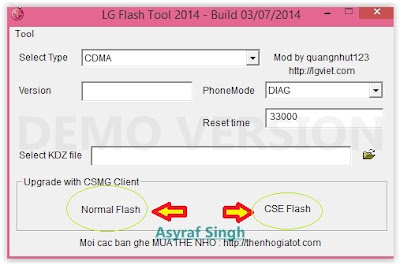
LG flash tool normal flash / CSE flash - Select Type: CDMA
- PhoneMode: DIAG
- Select KDZ file : browse your KDZ file in your drive
- Then you can Click on Normal Flash or CSE Flash (see step 7 to decide this option)
- Then click Start.
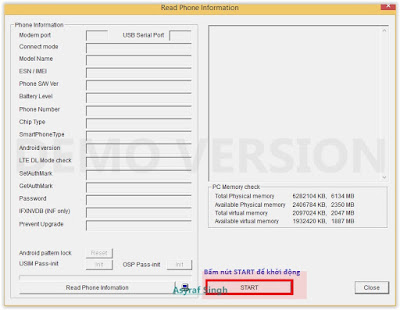
LG flash tool - start - Then click on Clear Phone Software update registry.
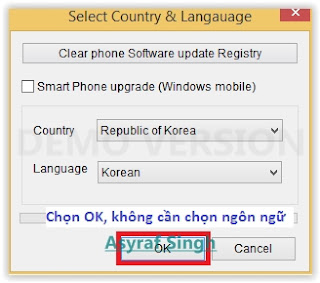
Lg flash tool - Clear Phone Software update registry. - No need to choose desired language, it automatically change to English as a default setting.
- Finally you can click OK.
- You must wait a minute for the LG Mobile Support tool to recognize the LG OPTIMUS L90 (LG D415RD T-Mobile ) device.
- When you wait this process, may take 5 minute the tool to recognize it.
- The software will start the extraction on your device.
- When the process reach 100% your LG OPTIMUS L90 (LG D415RD T-Mobile ) will reboot.
- Then, you must Unplug your LG OPTIMUS L90 (LG D415RD T-Mobile ) from your computer by remove USB Cable from it.,
- Finish,


#2. Guide To Flash LG OPTIMUS L90 (LG D415RD T-Mobile )
If #1 method is failed to flash your LG Android device, you can use this second method, flashing LG device using R&D Test Tool
Enter LG OPTIMUS L90 (LG D415RD T-Mobile ) To Download Mode.
To enter LG LG OPTIMUS L90 (LG D415RD T-Mobile ) in download mode, you can follow this guide :
- Remove battery from your phone
- Plug USB cable to your PC
- Press and Hold volume UP Button, while cable plugs USB Cable from PC to your Phone
- Then will appear white note on your LG OPTIMUS L90 (LG D415RD T-Mobile) phone, if you see this you can releasa Volume UP button.
- Press and hold volume UP Button on your LG OPTIMUS L90 (LG D415RD T-Mobile) phone again, until you see FIRMWARE UPDATE message.
- If your phone has been detected in your PC (to make sure, click the monitor icon beside Read Phone Information button, this action will open device manager windows. If your phone was detected you can see this at the top)
- Click START, and you will see dialogue box, just click OK
- Wait for the flash process, it will run in approximately 5 minute and your LG OPTIMUS L90 (LG D415RD T-Mobile) will restart itself
- Then your LG OPTIMUS L90 (LG D415RD T-Mobile) phone will boot up, if you can see Welcome Screen, its mean Flashing process is successfully.
- Unplug USB cable, and finish
- Now your LG OPTIMUS L90 (LG D415RD T-Mobile) is installed new firmware.


Wednesday, July 27, 2016
How to Install CM13 0 Nightly Android 6 0 1 Marshmallow on Galaxy S4 T Mobile Sprint Verizon AT T

CyanogenMod 13 [CM13.0] Nightly ROM latest build cm-13.0-20160520-NIGHTLY-osprey.zip is released for all Samsung Galaxy S4 Variants.
CM13.0 will let Galaxy S4 users taste the sweetness of Marshmallow 6.0.1 such as the battery saving ‘doze’ functionality and new permissions model, alongside the CM features you’d expect.
Follow our guide below to download the Unofficial CM13 and install it yourself.
View my Flipboard Magazine.
÷ Prerequisites:
•This tutorial is only for installing CyanogenMod 13 [CM13.0] Nightly ROM on Galaxy S4 [ (T-Mobile/Sprint/ Verizon/ AT&T)
•Your phone should be rooted and haveClockworkMod recovery installed from before.
•This tutorial will wipe out all your data.Proceed at your own risk.Perform a Dalvik Cache wipe before proceeding from the recovery mode.
Make sure you backup all your data in your phone before proceeding.
*Disclaimer:
Android Custom ROM fix ® provide various Firmware Updates and Rooting process along with Custom ROM,Modes,file are all belong to their owners/developers. The autor of this site or the developers are not responsible, if you damage or brick your device.Do it on your own risk and follow the instruction properly.
* Important:
Backup important files stored on your device before proceeding with the steps below, so that in case something goes wrong you’ll have backup of all your important files.

÷ How to Install CM13.0 Nightly Android 6.0.1 Marshmallow on Galaxy S4 [ (T-Mobile/Sprint/ Verizon/ AT&T]
Step 1 – Download CM13.0 Android 6.0.1 Marshmallow and Google Apps for your Galaxy S4 to your computer.
Galaxy S4 (T-Mobile) jfltetmo.
Galaxy S4 (Verizon) jfltevzw.
Galaxy S4 (Sprint) jfltespr.
Galaxy S4 (AT&T) jflteatt.
Step 2 – Connect and mount your Galaxy S4 USB memory on your computer using the USB cable.
Step 3 – Now copy/paste the downloaded Android 6.0.1 ROM zip file and Google Appszip files to your SD card. Make sure the files are in the SD card root (not in any folder).
Step 4 – Then turn OFF your phone and disconnect from the USB cable.
Step 5 – Now to get in the Recovery Mode. Switch ON the phone while pressing and holding Volume Up + Home + Power buttons together
Step 6 – Once you are in ClockworkModRecovery, select perform a full data wipe by selecting “wipe data/factory reset”. Use the Power button to select everything while in the Recovery Mode.
Step 7 – Then, perform a cache wipe by selecting “wipe cache partition” .
Step 8 – Now this is optional, but it is recommended to perform a wipe of your dalvik cache as well. You will not get into boot loops or any other errors. From CWM recovery, go to ‘advanced’ and then select “wipe dalvik cache”.
Step 9 – Then go back to the main recovery screen and select “install zip from SD card”.
Step 10 – Now select “choose zip from sdcard”. Using your volume keys, navigate to the Android 6.0.1 ROM zip file that you copied to your SD card and select it using the Power button. Confirm the installation on the next screen and the installation procedure should start now.
Google Apps: Repeat the above step for the Gapps zip file as well and install it on your phone.
Step 11 – After the installation completes, go to “+++++Go Back+++++” and reboot the phone by selecting “reboot system now” from the recovery menu.

Your Galaxy S4 will boot now and it might take about 5 minutes to boot on your first time. So, please wait.
That’s it Your Samsung Galaxy S4 should now have CM13.0 Nightly Android 6.0.1 Marshmallow latest build installed on your phone! Go to Settings > About phone to verify.
For More Galaxy S4 Brand New Firmware & Custom ROM keep checking AndroidCustomROM Fix ™®
Like this post? PLZ Hit the share buttons below to share this article with your friends on Facebook, Google + and Twitter.
PLZ Follow Us On Flipboard 4 More Galaxy S4 latest custom ROM fix.
PLZ Use the comment box below to contribute more ideas & Suggestions .
Best Regards.
÷ Prerequisites:
•This tutorial is only for installing CyanogenMod 13 [CM13.0] Nightly ROM on Galaxy S4 [ (T-Mobile/Sprint/ Verizon/ AT&T)
•Your phone should be rooted and haveClockworkMod recovery installed from before.
•This tutorial will wipe out all your data.Proceed at your own risk.Perform a Dalvik Cache wipe before proceeding from the recovery mode.
Make sure you backup all your data in your phone before proceeding.
*Disclaimer:
Android Custom ROM fix ® provide various Firmware Updates and Rooting process along with Custom ROM,Modes,file are all belong to their owners/developers. The autor of this site or the developers are not responsible, if you damage or brick your device.Do it on your own risk and follow the instruction properly.
* Important:
Backup important files stored on your device before proceeding with the steps below, so that in case something goes wrong you’ll have backup of all your important files.
÷ How to Install CM13.0 Nightly Android 6.0.1 Marshmallow on Galaxy S4 [ (T-Mobile/Sprint/ Verizon/ AT&T]
Step 1 – Download CM13.0 Android 6.0.1 Marshmallow and Google Apps for your Galaxy S4 to your computer.
Galaxy S4 (T-Mobile) jfltetmo.
Galaxy S4 (Verizon) jfltevzw.
Galaxy S4 (Sprint) jfltespr.
Galaxy S4 (AT&T) jflteatt.
Step 2 – Connect and mount your Galaxy S4 USB memory on your computer using the USB cable.
Step 3 – Now copy/paste the downloaded Android 6.0.1 ROM zip file and Google Appszip files to your SD card. Make sure the files are in the SD card root (not in any folder).
Step 4 – Then turn OFF your phone and disconnect from the USB cable.
Step 5 – Now to get in the Recovery Mode. Switch ON the phone while pressing and holding Volume Up + Home + Power buttons together
Step 6 – Once you are in ClockworkModRecovery, select perform a full data wipe by selecting “wipe data/factory reset”. Use the Power button to select everything while in the Recovery Mode.
Step 7 – Then, perform a cache wipe by selecting “wipe cache partition” .
Step 8 – Now this is optional, but it is recommended to perform a wipe of your dalvik cache as well. You will not get into boot loops or any other errors. From CWM recovery, go to ‘advanced’ and then select “wipe dalvik cache”.
Step 9 – Then go back to the main recovery screen and select “install zip from SD card”.
Step 10 – Now select “choose zip from sdcard”. Using your volume keys, navigate to the Android 6.0.1 ROM zip file that you copied to your SD card and select it using the Power button. Confirm the installation on the next screen and the installation procedure should start now.
Google Apps: Repeat the above step for the Gapps zip file as well and install it on your phone.
Step 11 – After the installation completes, go to “+++++Go Back+++++” and reboot the phone by selecting “reboot system now” from the recovery menu.
Your Galaxy S4 will boot now and it might take about 5 minutes to boot on your first time. So, please wait.
That’s it Your Samsung Galaxy S4 should now have CM13.0 Nightly Android 6.0.1 Marshmallow latest build installed on your phone! Go to Settings > About phone to verify.
For More Galaxy S4 Brand New Firmware & Custom ROM keep checking AndroidCustomROM Fix ™®
Like this post? PLZ Hit the share buttons below to share this article with your friends on Facebook, Google + and Twitter.
PLZ Follow Us On Flipboard 4 More Galaxy S4 latest custom ROM fix.
PLZ Use the comment box below to contribute more ideas & Suggestions .
Best Regards.
How to Install Android 6 0 1 Marshmallow BeanStalk ROM on T Mobile Galaxy S4 M919
Samsung T-Mobile Galaxy S4 SGH-M919 BeanStalk custom ROM comes with tons of new features and is based on Android 6.0.1 Marshmallow. A quick list of the main features in BeanStalk is given below and we are sure you’d love to use this on your Samsung T-Mobile Galaxy S4 SGH-M919:

CyanogenMod 13 based
PIE
Built in Task Manager switcher
OnTheGo Mode
App Circle bar
System UI Tuner
Quicker system animations
Trimmed down fat and excess bloat
Option to enable all widgets
Numerous extra lockscreen options
LCD Density
Custom original BeanStalk Wallpapers by skyliner33v
Custom BeanStalk bootanimation by skyliner33v
3-minit battery support
Clock and date options
Contextual Header – Original and Polygraphic
Battery styles – Includes specific colors and styles. Also includes battery bar
Do not disturb option
Show notification count
Recent screen options
Customizable navigation bar
Use Omniswitch as default recents
Built-in screen record
Toast animations
App Circle bar
Gesture Anywhere
Disable FC warnings
Disable Immersive message
Force expanded Notifications
Configure scrolling cache
Build.prop MOD options to enable/disable tweaks as preferred
Less frequent Notification sounds options
CRT screen off/on options to specify how the animation shows
Enable/disable wake up on charge option
Superuser fully embedded into the build and accessed from settings menu
CM Performance options and features
Hide superuser icon
Developer options and advanced reboot enabled by default
Numerous cherry-picks and improvements throughout the build.. baked into the
awesomeness of existing CM layout.
Numerous other options hidding throughout the build...
Don’t worry we are going to share step by step guide to safely Install Android 6.0.1 Marshmallow BeanStalk ROM on T-Mobile Galaxy S4 M919.
*Disclaimer:CyanogenMod 13 based
PIE
Built in Task Manager switcher
OnTheGo Mode
App Circle bar
System UI Tuner
Quicker system animations
Trimmed down fat and excess bloat
Option to enable all widgets
Numerous extra lockscreen options
LCD Density
Custom original BeanStalk Wallpapers by skyliner33v
Custom BeanStalk bootanimation by skyliner33v
3-minit battery support
Clock and date options
Contextual Header – Original and Polygraphic
Battery styles – Includes specific colors and styles. Also includes battery bar
Do not disturb option
Show notification count
Recent screen options
Customizable navigation bar
Use Omniswitch as default recents
Built-in screen record
Toast animations
App Circle bar
Gesture Anywhere
Disable FC warnings
Disable Immersive message
Force expanded Notifications
Configure scrolling cache
Build.prop MOD options to enable/disable tweaks as preferred
Less frequent Notification sounds options
CRT screen off/on options to specify how the animation shows
Enable/disable wake up on charge option
Superuser fully embedded into the build and accessed from settings menu
CM Performance options and features
Hide superuser icon
Developer options and advanced reboot enabled by default
Numerous cherry-picks and improvements throughout the build.. baked into the
awesomeness of existing CM layout.
Numerous other options hidding throughout the build...
Don’t worry we are going to share step by step guide to safely Install Android 6.0.1 Marshmallow BeanStalk ROM on T-Mobile Galaxy S4 M919.
View my Flipboard Magazine.
÷ Prerequisites:
•This tutorial is only for installing Android 6.0.1 BeanStalk ROM on T-Mobile Galaxy S4 SGH-M919. Please do not try on any other Galaxy S4 variants.
•Your phone should be rooted and have ClockworkMod recovery installed from before.
•This tutorial will wipe out all your data. Proceed at your own risk.
•Perform a Dalvik Cache wipe before proceeding from the recovery mode.
•Samsung KIES will NOT detect your phone after installing this ROM because it is a custom firmware.
•Make sure you backup all your data in your phone before proceeding.
÷ Prerequisites:
•This tutorial is only for installing Android 6.0.1 BeanStalk ROM on T-Mobile Galaxy S4 SGH-M919. Please do not try on any other Galaxy S4 variants.
•Your phone should be rooted and have ClockworkMod recovery installed from before.
•This tutorial will wipe out all your data. Proceed at your own risk.
•Perform a Dalvik Cache wipe before proceeding from the recovery mode.
•Samsung KIES will NOT detect your phone after installing this ROM because it is a custom firmware.
•Make sure you backup all your data in your phone before proceeding.
Android Custom ROM fix ® provide various Firmware Updates and Rooting process along with Custom ROM,Modes,file are all belong to their owners/developers. The autor of this site or the developers are not responsible, if you damage or brick your device.Do it on your own risk and follow the instruction properly.
* Important:
Backup important files stored on your device before proceeding with the steps below, so that in case something goes wrong you’ll have backup of all your important files.

÷ How to Install Android 6.0.1 Marshmallow BeanStalk ROM on T-Mobile Galaxy S4 M919:
Step 1 – Download Android 6.0.1 BeanStalk ROM and Google Apps for Galaxy S4 to your computer.
Step 2 – Connect and mount your Galaxy S4 USB memory on your computer using the USB cable.
Step 3 – Now copy/paste the downloaded Android 6.0.1 ROM zip and Google Apps zip files to your SD card. Make sure the files are in the SD card root (not in any folder).
Step 4 – Then turn OFF your phone and disconnect from the USB cable.
Step 5 – Now to get in the Recovery Mode. Switch ON the phone while pressing and holding Volume Up + Home + Power buttons together.
Step 6 – Once you are in ClockworkMod Recovery, select perform a full data wipe by selecting “wipe data/factory reset”. Use the Power button to select everything while in the Recovery Mode.
Step 7 – Then, perform a cache wipe by selecting “wipe cache partition” .
Step 8 – Now this is optional, but it is recommended to perform a wipe of your dalvik cache as well. You will not get into boot loops or any other errors. From CWM recovery, go to ‘advanced’ and then select “wipe dalvik cache”.
Step 9 – Then go back to the main recovery screen and select “install zip from SD card”.
Step 10 – Now select “choose zip from sdcard”. Using your volume keys, navigate to the Android 6.0.1 ROM zip file that you copied to your SD card and select it using the Power button. Confirm the installation on the next screen and the installation procedure should start now.
Google Apps: Repeat the above step for the Gapps zip file as well and install it on your phone.
Step 11 – After the installation completes, go to “+++++Go Back+++++” and reboot the phone by selecting “reboot system now” from the recovery menu .
Your T-Mobile Galaxy S4 SGH-M919 will boot now and it might take about 5 minutes to boot on your first time. So, please wait.

That’s it! Your T-Mobile Galaxy S4 should now have Android 6.0.1 BeanStalk Marshmallow custom ROM installed on your phone! Go to Settings > About phone to verify.
Like this post? PLZ Hit the share buttons below to share this article with your friends on Facebook, Google + and Twitter.
PLZ Follow Us On Flipboard 4 More Samsung Galaxy S4 latest updates.
PLZ Use the comment box below to contribute more ideas & Suggestions .
Best Regards.
Tuesday, July 26, 2016
Arc Mobile Velocity Android 4 2 2 factory Firmware

ProdName : Velocity
ProdModel : Velocity
Device : Velocity
AndroidVer: 4.2.2
MTKxCPU : MT6592
MTKxPRJ : Arc_Velocity_V007
Download Rom
Download Flasher
password: 13freakbyjhunpanabo
Flashing of any smart Phones or Feature Phone is not always safe. Kindly read our disclaimer, before proceeding or else you can getting any problems towards.
Disclaimer: Flashing a firmware is not without any risks.
If you dont do it properly, you might render your phone inoperable.
If you decide to proceed we wont be liable to whatever might get wrong "neither we could provide technical support" just leave a comment or contact us on our google mail.
Factory Firmware Code:
MT6592__wing__Velocity__Velocity__4.2.2__Arc_Velocity_V007
Note:enter without quote for password.. 13freakbyjhunpanabo
Cherry Mobile Flare S3 Octa 4 4 4 kitkat rom color Silver

ProdName : X330
ProdModel : X330
Device : FlareS3
Color : Silver
AndroidVer: 4.4.4
MTKxCPU : MT6592
MTKxPRJ : Flare_S3_Octacore_X330_V05_20150213
Download Rom
Download Flasher
Flashing of any smart Phones or Feature Phone is not always safe. Kindly read our disclaimer, before proceeding or else you can getting any problems towards.
Disclaimer: Flashing a firmware is not without any risks.
If you dont do it properly, you might render your phone inoperable.
If you decide to proceed we wont be liable to whatever might get wrong "neither we could provide technical support" just leave a comment or contact us on our google mail.
Factory Firmware Code:
MT6592__Cherry Mobile__X330__FlareS3__4.4.4__Flare_S3_Octa_Silver_X330_V05_20150213.rar
Monday, July 25, 2016
Cherry Mobile Omega 4G Rom scatter

info:
Os version: Android 5.1 lollipop
Config version: V1.1.2
Platform: MT6735M
Project: konka6735m_l551_65u_l
Storage: EMMC
Boot channel: MSDC_0
Block size: 0x20000
Download Rom
Download Flasher
Flashing of any smart Phones or Feature Phone is not always safe. Kindly read our disclaimer, before proceeding or else you can getting any problems towards.
Disclaimer: Flashing a firmware is not without any risks.
If you dont do it properly, you might render your phone inoperable.
If you decide to proceed we wont be liable to whatever might get wrong "neither we could provide technical support" just leave a comment or contact us on our google mail.
Factory Firmware Code:
MT6735__Cherry_Mobile__Omega_4G__Omega_4G__5.1__Cherry_Mobile_Omega4G_V06_20150716
Sunday, July 24, 2016
How to Install Android 6 0 1 Marshmallow ResurrectionRemix ROM on T Mobile Galaxy Note 3 N900T
T-Mobile Galaxy Note 3 N900T ResurrectionRemix custom ROM comes with tons of new features and is based on Android 6.0.1 Marshmallow. A quick list of the main features in ResurrectionRemix is given below and we are sure you’d love to use this on your T-Mobile Galaxy Note 3 N900T:

Based On Latest Google Android 6.0.1 Release
Based On Cyanogenmod 13 Sources
RR Customizations
Navigation Bar
Enable/Disable Navbar
Navbar Button Customization
Navbar Slim Dim
Animate Dim
Dim Timeout Duration
Dim Alpha
Double Tap To sleep navbar
Navigation Bar left/Right handed mode Switch for landscape...
Don’t worry we are going to share step by step guide to safely Install Android 6.0.1 Marshmallow ResurrectionRemix ROM on T-Mobile Galaxy Note 3 N900T.
View my Flipboard Magazine.
÷ Prerequisites:
÷ Prerequisites:
•This tutorial is only for installing ResurrectionRemix Android 6.0.1 ROM on T-Mobile Galaxy Note 3 N900T. Please do not try on any other Galaxy Note 3 variants.
•Your phone should be rooted and have ClockworkMod recovery installed from before.
•This tutorial will wipe out all your data. Proceed at your own risk.
•Perform a Dalvik Cache wipe before proceeding from the recovery mode.
•Samsung KIES will NOT detect your phone after installing this ROM because it is a custom firmware.
•Make sure you backup all your data in your phone before proceeding.
*Disclaimer:
Android Custom ROM fix ® provide various Firmware Updates and Rooting process along with Custom ROM,Modes,file are all belong to their owners/developers. The autor of this site or the developers are not responsible, if you damage or brick your device.Do it on your own risk and follow the instruction properly.
* Important:
Backup important files stored on your device before proceeding with the steps below, so that in case something goes wrong you’ll have backup of all your important files.

÷ How to Install Android 6.0.1 Marshmallow ResurrectionRemix ROM on T-Mobile Galaxy Note 3 N900T :
Step 1 – Download ResurrectionRemix Android 6.0.1 ROM and Google Apps for T-Mobile Galaxy Note 3 to your computer.
Step 2 – Connect and mount your Galaxy Note 3 USB memory on your computer using the USB cable.
Step 3 – Now copy/paste the downloaded Android 6.0.1 ROM zip and Google Apps zip files to your SD card. Make sure the files are in the SD card root (not in any folder).
Step 4 – Then turn OFF your phone and disconnect from the USB cable.
Step 5 – Now to get in the Recovery Mode. Switch ON the phone while pressing and holding Volume Up + Home + Power buttons together.
Step 6 – Once you are in ClockworkMod Recovery, select perform a full data wipe by selecting “wipe data/factory reset” as shown below. Use the Power button to select everything while in the Recovery Mode.
Step 7 – Then, perform a cache wipe by selecting “wipe cache partition”.
Step 8 – Now this is optional, but it is recommended to perform a wipe of your dalvik cache as well. You will not get into boot loops or any other errors. From CWM recovery, go to ‘advanced’ and then select “wipe dalvik cache”.
Step 9 – Then go back to the main recovery screen and select “install zip from SD card”.
Step 10 – Now select “choose zip from sdcard”. Using your volume keys, navigate to the Android 6.0.1 ROM zip file that you copied to your SD card and select it using the Power button. Confirm the installation on the next screen and the installation procedure should start now.
Google Apps: Repeat the above step for the Gapps zip file as well and install it on your phone.
Step 11 – After the installation completes, go to “+++++Go Back+++++” and reboot the phone by selecting “reboot system now” from the recovery menu .

Your T-Mobile Galaxy Note 3 N900T will boot now and it might take about 5 minutes to boot on your first time. So, please wait.
That’s it! Your T-Mobile Galaxy Note 3 should now have ResurrectionRemix Android 6.0.1 Marshmallow custom ROM installed on your phone! Go to Settings > About phone to verify.
For More T-Mobile Galaxy Note 3 Latest Updates Keep Checking Android Custom ROM Fix™®
Like this post? PLZ Hit the share buttons below to share this article with your friends on Facebook, Google + and Twitter.
PLZ Follow Us On Flipboard 4 More Latest Updates.
PLZ Use the comment box below to contribute more ideas & Suggestions .
Best Regards.
Beberapa Smartphone Lumia Yang Akan Mendapatkan Update Windows 10 Mobile

Setelah dipastikan Update Windows 10 terlambat namun kabar ini tidak terlalu mengecewakan, pasalnya Microsoft telah mengumumkan beberapa Smartphone Lumia apa saja yang akan mendapat Update Windows 10 mobile ini.
Rencananya update ini akan digulirkan pada awal tahun 2016 mendatang, namun, Microsft sendiri belum membarikan informasi datail tentang kapan tepatnya update Windows 10 akan disebarkan.
Beberapa handset yang akan medapat Update Windows 10 Mobile antara lain, Lumia 630, 635, 640, 735, dan 830 dan untuk seri Lumia 520, 532, 625, 720, 820, 920, 925, 930, 1020, dan 1320 jugak tidak ketinggalan mendapatkan Update Windows 10 Mobile.
Saturday, July 23, 2016
Cherry Mobile Flare s3 octacore kitkat 4 4 4 firmware for sp flash tool

Download: Scatter file
Roms Code: MT6592_Cherry Mobile__X330__FlareS3__4.4.4__Flare_S3_Octacore_X330_V05_20150213
Cherry Mobile Flare S3 Octa specs
Android Kit-Kat 4.4
MTK 6592m Octa-Core 1.4GHz Processor
Dual SIM
5” HD 720p IPS Screen
13MP Rear Camera
5MP Front Camera
8GB ROM + 1GB RAM
HSPA+
BT 4.0 | Wi-Fi | GPS
Micro SD Up to 32GB
USB-OTG Ready
Friday, July 22, 2016
Cherry Mobile Flare S3 Octa 4 4 4 kitkat rom color gold

ProdName : X330
ProdModel : X330
Device : FlareS3
Color : Gold
AndroidVer: 4.4.4
MTKxCPU : MT6592
MTKxPRJ : Flare_S3_Octacore_X330_V05_20150213
Download Rom
Download Flasher
Flashing of any smart Phones or Feature Phone is not always safe. Kindly read our disclaimer, before proceeding or else you can getting any problems towards.
Disclaimer: Flashing a firmware is not without any risks.
If you dont do it properly, you might render your phone inoperable.
If you decide to proceed we wont be liable to whatever might get wrong "neither we could provide technical support" just leave a comment or contact us on our google mail.
Factory Firmware Code:
MT6592__Cherry Mobile__X330__FlareS3__4.4.4__Flare_S3_Octacore_Gold_X330_V05_20150213
Cherry Mobile Cheer Android 4 4 2 Kitkat factory Firmware

ProdName : vk_k405
ProdModel : Q880
Device : vk_k405
AndroidVer: 4.4.2
MTKxCPU : MT6582
MTKxPRJ : 07
Download Rom
Download Flasher
Flashing of any smart Phones or Feature Phone is not always safe. Kindly read our disclaimer, before proceeding or else you can getting any problems towards.
Disclaimer: Flashing a firmware is not without any risks.
If you dont do it properly, you might render your phone inoperable.
If you decide to proceed we wont be liable to whatever might get wrong "neither we could provide technical support" just leave a comment or contact us on our google mail.
Factory Firmware Code:
MT6582__Cherry_Mobile__Cheer__Q880__vk_k405__4.4.2__07
Guide Hard Reset Samsung Galaxy J7 FOR METRO PCS T MOBILE To Restore Factory Setting Remove Forgot Pattern PIN Password
[Guide] Hard Reset Samsung Galaxy J7 FOR METRO PCS / T-MOBILE To Restore Factory Setting & Remove Forgot Pattern/PIN/Password.
Hard Reset Samsung Galaxy J7 FOR METRO PCS / T-MOBILE. This device is released on April, 2016. And todays guidebelajar will explain to you how to perform hard reset on Samsung Galaxy J7 FOR METRO PCS / T-MOBILE smartphone. Please keep in mind, this tutorial will erase all data saved on your internal memory. Samsung Galaxy J7 FOR METRO PCS / T-MOBILE is the smartphone with 5,5 Inchi Super AMOLED capacitive touchscreen, 16M colors, work on Android OS, v5.1 (Lollipop), and supported with Processor Octa-core 1.6 GHz, combined with 2 GB of RAM, 13 MP on primary camera and 5 MP on secondary camera to capture best moment and make a selfie on your life.
Most of Android user say that Hard reset process is call with master reset or factory reset. Many people asking why shoud we perform hard reset to our phone. The logical answer that can I say for this asking is :
Most of Android user say that Hard reset process is call with master reset or factory reset. Many people asking why shoud we perform hard reset to our phone. The logical answer that can I say for this asking is :
- There are many bug on Samsung Galaxy J7 FOR METRO PCS / T-MOBILE.
- Samsung Galaxy J7 FOR METRO PCS / T-MOBILE has a persistent problem that cannot be solved.
- Because we will sell our Samsung Galaxy J7 FOR METRO PCS / T-MOBILE Android phones
- We want to remove all personal data and setting that was stored in Samsung Galaxy J7 FOR METRO PCS / T-MOBILE.device.
- Our Samsung Galaxy J7 FOR METRO PCS / T-MOBILE has been lagging and stuck on android logo, this call with bootloop
- We have forgotten on PIN or Patern Lock at Samsung Galaxy J7 FOR METRO PCS / T-MOBILE.
- We will give our Samsung Galaxy J7 FOR METRO PCS / T-MOBILE away to some one else, and we dont want that one know everything about our secret data, so we have to erase all data before back up it.
- and many other reason.
1st Methode. Hard Reset Samsung Galaxy J7 FOR METRO PCS / T-MOBILE Using Menu :
- Make sure your batery is fully charged, Recomended you have 80% of battery capacity
- Then Backup your Samsung Galaxy J7 FOR METRO PCS / T-MOBILE. See This Guide
- Go to menu: System Setting >
- Select Backup and Reset >
- Factory Data Reset >
- Reset Phone
- Choose Erase everything to confirm that you already to perform hard reset on Samsung Galaxy J7 FOR METRO PCS / T-MOBILE
- Samsung Galaxy J7 FOR METRO PCS / T-MOBILE will continue to hard reset process to restore factory default.
2ndMethode. Hard Reset Samsung Galaxy J7 FOR METRO PCS / T-MOBILE Using Hardware Keys:
- Make sure your battery is fully charged, we recomended that your battery has 80% power
- Always BackUp your important data that store in Samsung Galaxy J7 FOR METRO PCS / T-MOBILE. see this guide
- Turn Off your Samsung Galaxy J7 FOR METRO PCS / T-MOBILE by hold and press Power Button for a second.
- Release any SIM card and SD card that was installed on your Samsung Galaxy J7 FOR METRO PCS / T-MOBILE smartphone.
- Then press and hold together a combination button Volume Up + Home Button + Power button at same time for a seconds.

Hard Reset Samsung Galaxy J7 FOR METRO PCS / T-MOBILE - Then you will see Samsung Galaxy J7 Logo.

Samsung Galaxy J7 FOR METRO PCS / T-MOBILE Logo - When Android Logo appear on your screen. You must release all button.

Android Logo - hard reset samsung galaxy J7 for METRO PCS / T-Mobile - And now you will enter, Android System Recovery.
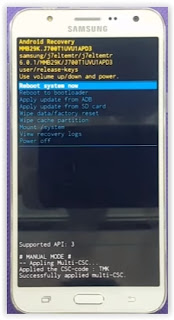
Android System Recovery - Scroll down using Power Down button, and you can select "wipe data/factory reset" and confirm it using Power Button.
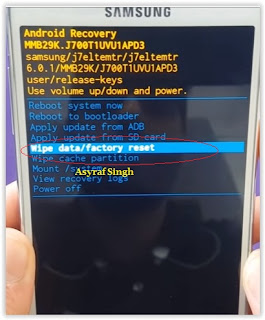
wipe data - Hard Reset - Then select "Yes". use volume down button to choice menu, and again confirm it using Power Button. Please be ware, on this this step you will be lost everything stored on your phone. So, make sure to always backup all data before performing hard reset.

- Now, wait the process untill you see data wipe complete appear on screen.

wipe data process - After a few minute hard reset process will finished, and your screen will be back to Android System recovery screen.
- Now, Select Reboot System Now to reboot your device.

Reboot System Now - You can wait a while for Samsung Galaxy J7 FOR METRO PCS / T-MOBILE to reboot system
- Done, your hard reset process success now.


Video Guide.
Thursday, July 21, 2016
Guide How to Find IMEI or MEID Number on a Mobile Smartphone Device
[Guide] How to Find IMEI or MEID Number on a Mobile Smartphone Device.
Find IMEI Number. This guide will show you how to Find IMEI or MEID Number on a Mobile Smartphone Device. IMEI literally stands for International Mobile Equipment Identity. Each and every Mobile Smartphone device should have a unique IMEI Number. A standard IMEI number is a Fourteen (14) digit decimal string accompanied by an additional check number. There are many may to find this IMEI number on your Mobile smartphone device. And now we will show it to you, just following the guide below.
Find IMEI Number.
- Using Android Smartphone Menu.
- Go to Android Setting Menu. Just go to App Drawer and find Setting menu, then Tap it.

IMEI number - setting menu - Then tap About Phone. To find it just Scroll menu to the bottom of screen.
- Then tap Status. Scroll down until you find the MEID or IMEI entry. this is difference between IMEI dan MEID.
- IMEI : GSM networks like AT&T and T-Mobile.
- MEID : CDMA networks such as Sprint, Verizon, and US Cellular.
- Dialing Code on Dial Pad.
- Open Dial Pad on your Android Mobile smartphone.

IMEI number - dialing code - Then Dial :
- *#06#
- You dont need to press or tap Call or Send button on your screen.
- Then, the IMEI/MEID number will appear as soon as you finish dialing the code.
- You can write the number down, or copy and paste it to the Email or Message.
- Find IMEI / MEID Under Battery.
- This is a simple way you can do. But, its possible on a phone with removable battery.
- Just remove the back phone cover.
- Then take out the battery tray.
- Once your battery removed, now see behind the battery.
- You will see printed IMEI or MEID number on mobile smartphone body.

IMEI number - under battery - Now, write down this number.


All Symphony MTK Mobile Flash Tool For Smart Phone Free Download
All symphony flash tool And usb driver/ Firmware Updating tool free download latest version Tools has been released and avail able to free download. You can download its most recent file from here without waiting anymore. You are to click on the given downloading link below.
symphony xplorer Android Mobile are an authentic and legal flashing tool which is used to flash mobile phone. You can use it to error free flashing of your mobile phones. The most recent file at the time of this publication is SP FLASH TOOL v5.1540.00. The downloading link which is given at the bottom of this post, has been brought you from an open source to you. If you were looking for the symphony mobile android latest version of this flashing tool then scroll down and click on the given downloading link.

To download latest version of symphony flash tool MTK SP flash tool just scroll down the page and click on the given downloading link below. When you will click on that link, then you will find a small windows where you will be guided about downloading file. There always an option will be given as "Save File". You are to click on that option to proceed the downloading process.
Download v5.1540.00
Download v5.1444.00.000
How to Install Android 6 0 1 Marshmallow Dr KETAN ROM on T Mobile Galaxy Note 4 SM N910T

According to XDA member Lanc-City, Android 6.0.1 Marshmallow Dr KETAN ROM is released fit T-Mobile Samsung Galaxy Note 4 SM- N910T.
View my Flipboard Magazine.
÷ Prerequisites:
÷ Prerequisites:
This tutorial is only for installing Android 6.0.1 CDr KETAN ROM on T-Mobile Samsung Galaxy Note 4 SM- N910T. Please do not try on any other Galaxy Note 4 variants.
•Your phone should have a custom recovery installed in order to install this CRISSCROSS ROM on your phone.
•We will be using TWRP Recovery for this tutorial.
•This tutorial will wipe out all your data. Make sure you backup all your data in your phone before proceeding.
•Samsung KIES will NOT detect your phone after installing this ROM because it is a custom firmware.
•Perform a Dalvik Cache wipe before proceeding from the Recovery Mode.
*Disclaimer:
Android Custom ROM fix ® provide various Firmware Updates and Rooting process along with Custom ROM,Modes,file are all belong to their owners/developers. The autor of this site or the developers are not responsible, if you damage or brick your device.Do it on your own risk and follow the instruction properly.
* Important:
Backup important files stored on your device before proceeding with the steps below, so that in case something goes wrong you’ll have backup of all your important files.
 Dr KETAN ROM Download & Installation Instructions via XDA.
For More Samsung Galaxy Note 4 Updates Keep Checking Android Custom ROM Fix ™®
Like this post? PLZ Hit the share buttons below to share this article with your friends on Facebook, Google + and Twitter.
PLZ Follow Us On Flipboard 4 More Latest Updates.
PLZ Use the comment box below to contribute more ideas & Suggestions .
Best Regards.
Cherry Mobile Flare S4 Android 5 1 Factory Firmware

ProdName : Flare_S4
ProdModel : Flare_S4
Device : Flare_S4
AndroidVer: 5.1
MTKxCPU : MT6735
MTKxPRJ : ALPS.L1.MP3.V2_VANZO6753.65U.L1_P39
Download Rom --- Password: cherrymobileFlares413freak
Download Flasher
Flashing of any smart Phones or Feature Phone is not always safe. Kindly read our disclaimer, before proceeding or else you can getting any problems towards.
Disclaimer: Flashing a firmware is not without any risks.
If you dont do it properly, you might render your phone inoperable.
If you decide to proceed we wont be liable to whatever might get wrong "neither we could provide technical support" just leave a comment or contact us on our google mail.
Factory Firmware Code:
MT6735__cherry__Flare_S4__Flare_S4__5.1__ALPS.L1.MP3.V2_VANZO6753.65U.L1_P39
Happy Mobile Magic S Factory Firmware
Brand : MAGIC S
ProdName : MAGIC S
ProdModel : MAGIC S
Device : MAGIC S
AndroidVer: 4.2.2
MTKxCPU : MT6572
MTKxPRJ : ALPS.JB3.MP.V1.6
ProdName : MAGIC S
ProdModel : MAGIC S
Device : MAGIC S
AndroidVer: 4.2.2
MTKxCPU : MT6572
MTKxPRJ : ALPS.JB3.MP.V1.6
Download Rom
Download Flasher
Flashing of any smart Phones or Feature Phone is not always safe. Kindly read our disclaimer, before proceeding or else you can getting any problems towards.
Disclaimer: Flashing a firmware is not without any risks.
If you dont do it properly, you might render your phone inoperable.
If you decide to proceed we wont be liable to whatever might get wrong "neither we could provide technical support" just leave a comment or contact us on our google mail.
Factory Firmware Code:
Download Flasher
Flashing of any smart Phones or Feature Phone is not always safe. Kindly read our disclaimer, before proceeding or else you can getting any problems towards.
Disclaimer: Flashing a firmware is not without any risks.
If you dont do it properly, you might render your phone inoperable.
If you decide to proceed we wont be liable to whatever might get wrong "neither we could provide technical support" just leave a comment or contact us on our google mail.
Factory Firmware Code:
MT6572__MAGIC S__MAGIC S__MAGIC S__4.2.2__ALPS.JB3.MP.V1.6
Subscribe to:
Posts (Atom)