Showing posts with label share. Show all posts
Showing posts with label share. Show all posts
Tuesday, July 19, 2016
Cherry Mobile Life Share Stock Rom
Installation Guide: Download firmware link and put into the sdcard directory and make this five steps into your mobile phone.
1. Reboot to recovery (cmw)
2. Wipe data/cache (factory reset)
3. Advance then Wipde dalvik cache
4. Choose update on sdcard
5. Reboot
Download:
Part 1
Part 2
Read more »
1. Reboot to recovery (cmw)
2. Wipe data/cache (factory reset)
3. Advance then Wipde dalvik cache
4. Choose update on sdcard
5. Reboot
Download:
Part 1
Part 2

Monday, July 18, 2016
How to Share VPN Network from Mobile to PC Using DF Tethering Fix App
Hi there! Today I will show you guys how to VPN from Mobile to PC Network using DF Tethering Fix App.It is another another super-fast tethering app that works perfect without any limitation,
DF Tethering Fix allows you to remove limitation on tethering imposed by android and let you use your mobile Vpn networks such as Psiphon, OpenVpn, Tweakware etc. You can share the network using your mobile hotspot.
Advantage of DF Tethering Fix app
1. You dont need to install any apps on the device you want to share the network to
2. It has no limitation
Note: This app works on rooted device only not like pdanet+. To enjoy this app you need to root your mobile device.
If you want to root your android device click HERE
How it Works.
Click HERE to download DF Tethering Fix app on your android device
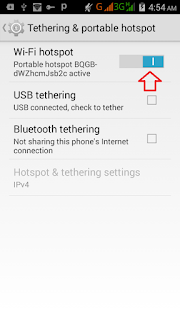
Now go to your Mobile settings, under Tethering and portable hotspots turn your Wi-Fi hotspot ON
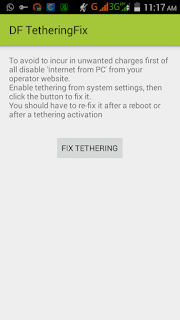
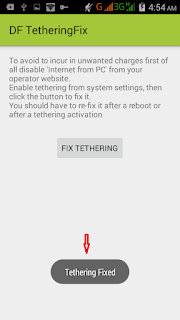
Click on FIX TETHERING until Tethering Fixed show up
Now go to your pc and turn on you Wi-Fi and search for the network and click your pc with it
Note: Make sure your vpn software is connected
Thats all
Enjoy.
How To Share Psiphon Tweakware OpenVpn and JWP Internet Network From Your Mobile Device To PC
In our previous post, I showed you guys how to share your Mobile VPN connection with PC using DF Tethering Fix App. Today am going to show you how to power your pc with internet connection from your mobile device using great software called PdaNET+.

PdaNet+ is one of the top Android applications of all time. PdaNet+ shares the Internet access of your Android phone with your computer or tablet. PdaNet+ works on all Android phones without rooting.
PdaNet+ allows your laptop to go online wirelessly through your VPNS network on your Android devices. No need to set any proxy and port on your Pc browsers is a direct internet connection from your mobile device. Now follow the steps below to get started.
Requirement
1. Android Mobile device
2. USB Cable
3. PC
Software’s Needed
1. PdaNET+ for android device Click HERE to download
2. PdaNET+ for PC Click HERE to download
How To Share Your Mobile Vpn network to Pc using PdaNET+
1. Install PdaNET+ for android device on your phone
2. Lunch PdaNET+ on your phone and Activate USB TENDER

Note: Make sure you enable USB debugging
3. Now install PdaNET+ for PC on your PC
4. Connect your mobile device via USB cable to your PC
Note: Make sure your Vpns software such as Psiphon, openVpn, Tweakware or JWP is already connected on your mobile device.
5. Now open the PdaNET+ on your Pc click “connect internet”, it will verify and authenticate your connection and it will show connected.


Now you successfully shared you VPNS Network with your PC and you can now use your PC without any proxy or simple server.
Subscribe to:
Posts (Atom)