Showing posts with label network. Show all posts
Showing posts with label network. Show all posts
Friday, July 29, 2016
Advertopia Advertising Network Sign Up and Get 10 Bonus
 Are you a blogger or website owner, always looking for an alternative to google Adsense to make money online? Today am going introduce a new ads network that pays every 2 weeks via PayPal or bank transfer which is called Advertopia
 What Is Advertopia?
Advertopia is a CPM advertising network serving a large volume of ads to the publishers. They have lots of premium advertising campaigns and thus allows you to increase your revenue from your online content. They offer very high payouts compared to other CPM ad networks. Their content scanning algorithms can choose the best matching and highest paying ads for your traffic. There are no strict requirements to get accepted and minimum traffic requirements are low. But you should definitely have good quality content to get approved and see good results. Advertopia pays every 2 weeks via PayPal or bank transfer and guarantees 100% fill rates. With industry high CPM rates and low limit payouts of just $20, Adertopia also provides great online support.
If you join Advertopia now, you will also get a sign up bonus of $10. How great is it? Now, get your hands on Advertopia and deliver good traffic and let the income flow.
Advertopia Network Details
Advertopia Network Details
| Commission Type | CPM, POP |
| Minimum Payout | $20 |
| Payment Frequency | Bi- Weekly |
| Payment Method | PayPal, Bank Transfer |
| Country | United States |
| Ad Serving | International |

Thursday, July 21, 2016
How to set up a Wi Fi network

The Internet is a really powerful tool. It gives us access to all kinds of information at a moments notice—think email, Google search, and Wikipedia. So theres something a little counter intuitive about only being able to use the Internet when you sit down at a desktop computer. What if you could use the Internet from anywhere in your home or office?
If you already have high-speed (broadband) Internet service at your house, its pretty easy to create your own home wireless network. Commonly known as Wi-Fi, a wireless network allows you to connect laptops, smartphones, and other mobile devices to your home Internet service without an Ethernet cable.
So you wanna know how to set it up? then lets go!
Buy a wireless router

To create your own Wi-Fi network, youll need a wireless router. This is the device that will broadcast the Wi-Fi signal from your Internet modem throughout your house. Your Internet service provider (ISP) may offer you a wireless router for a small monthly fee. If youve never set up a Wi-Fi network before, this may be the easiest option.
If you want to buy your own router, wed recommend spending a little more time researching different options. PC Mag offers a comprehensive guide on How to Buy a Wireless Router.
Some Internet modems may already have a built-in wireless router, which means you wont need to purchase a separate one.
Connect the cables

- Once youve acquired a wireless router, youll need to connect it to your existing Internet modem.
- Connect an Ethernet cable from your modem to the wireless router (there is usually a short Ethernet cable included with your wireless router for this purpose).
- Plug in the power cable for the wireless router.
- Wait at least 30-60 seconds and make sure the lights on your router are working correctly.
Configure your router
Next, youll need to use your computer to configure your routers default settings. This includes setting a unique name and password for your wireless network.
- Using your web browser, enter the routers default IP address into the address bar, then press Enter. Your routers instructions should include this information, but some of the most common addresses include192.168.0.1, 192.168.1.1, and 192.168.2.1.
- The routers sign-in page will appear. Again, the exact sign-in details should be included with your routers instructions, but most routers use a standard user name and password combination, such as admin andpassword.
- Your routers settings page will appear. Locate and select the Network Name setting, then enter a unique network name.
- Locate and select the Network Password setting, and choose an Encryption option. There are several types of encryption you can use, but we recommend WPA2—this is generally considered to be the most secure.
- Enter your desired password. Make sure to use a strong password to help ensure no one else can access your network.
- Locate and select the Save button to save your settings.
Connect!
Thats it! Now youre ready to connect to your Wi-Fi network and make sure its working. The process for connecting to a Wi-Fi network will vary slightly depending on what type of computer or device youre using, but any system will require these basics steps:
- Locate your computers network settings and search for nearby Wi-Fi networks.
- Select your network and enter your password.
- If the connection is successful, open your web browser and try navigating to a webpage like www.google.com. If the page loads, it means your Wi-Fi connection is working correctly!
Congratulations!
You see that its so simple,Youve just set up your own home wireless network—way to go!
Monday, July 18, 2016
How to Share VPN Network from Mobile to PC Using DF Tethering Fix App
Hi there! Today I will show you guys how to VPN from Mobile to PC Network using DF Tethering Fix App.It is another another super-fast tethering app that works perfect without any limitation,
DF Tethering Fix allows you to remove limitation on tethering imposed by android and let you use your mobile Vpn networks such as Psiphon, OpenVpn, Tweakware etc. You can share the network using your mobile hotspot.
Advantage of DF Tethering Fix app
1. You dont need to install any apps on the device you want to share the network to
2. It has no limitation
Note: This app works on rooted device only not like pdanet+. To enjoy this app you need to root your mobile device.
If you want to root your android device click HERE
How it Works.
Click HERE to download DF Tethering Fix app on your android device
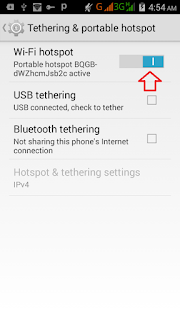
Now go to your Mobile settings, under Tethering and portable hotspots turn your Wi-Fi hotspot ON
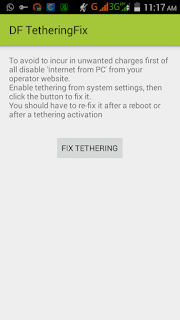
Click on FIX TETHERING until Tethering Fixed show up
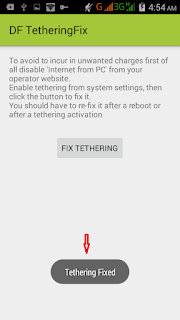
Now go to your pc and turn on you Wi-Fi and search for the network and click your pc with it
Note: Make sure your vpn software is connected
Thats all
Enjoy.
How To Share Psiphon Tweakware OpenVpn and JWP Internet Network From Your Mobile Device To PC
In our previous post, I showed you guys how to share your Mobile VPN connection with PC using DF Tethering Fix App. Today am going to show you how to power your pc with internet connection from your mobile device using great software called PdaNET+.

PdaNet+ is one of the top Android applications of all time. PdaNet+ shares the Internet access of your Android phone with your computer or tablet. PdaNet+ works on all Android phones without rooting.
PdaNet+ allows your laptop to go online wirelessly through your VPNS network on your Android devices. No need to set any proxy and port on your Pc browsers is a direct internet connection from your mobile device. Now follow the steps below to get started.
Requirement
1. Android Mobile device
2. USB Cable
3. PC
Software’s Needed
1. PdaNET+ for android device Click HERE to download
2. PdaNET+ for PC Click HERE to download
How To Share Your Mobile Vpn network to Pc using PdaNET+
1. Install PdaNET+ for android device on your phone
2. Lunch PdaNET+ on your phone and Activate USB TENDER

Note: Make sure you enable USB debugging
3. Now install PdaNET+ for PC on your PC
4. Connect your mobile device via USB cable to your PC
Note: Make sure your Vpns software such as Psiphon, openVpn, Tweakware or JWP is already connected on your mobile device.
5. Now open the PdaNET+ on your Pc click “connect internet”, it will verify and authenticate your connection and it will show connected.


Now you successfully shared you VPNS Network with your PC and you can now use your PC without any proxy or simple server.
Subscribe to:
Posts (Atom)